
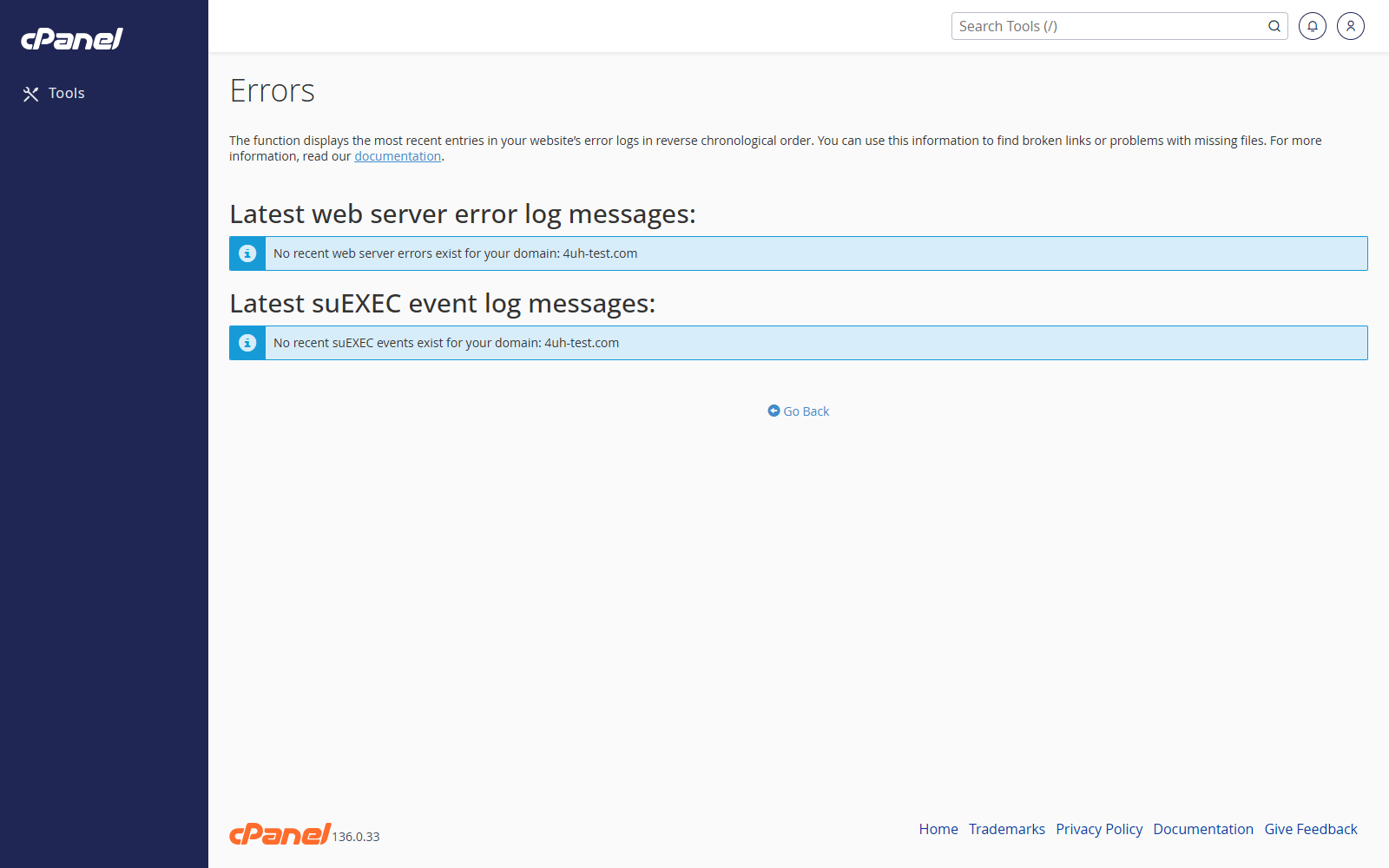
Open Errors
- Log in to cPanel.
- Go to Metrics > Errors.
- Review the recent website errors shown on the page.
Check Recent Errors
- Open Errors.
- Read the newest entries first.
- Look for the file path, error type, and time of the error.
Use Errors When Troubleshooting
- Check this screen after seeing a website error.
- Compare the error time with the time the problem happened.
- Use the file path to find the script or file causing the issue.
Notes
- This screen normally shows recent Apache errors for the account.
- It may not show every PHP or application error.
- If the page is empty, there may be no recent web server errors.