
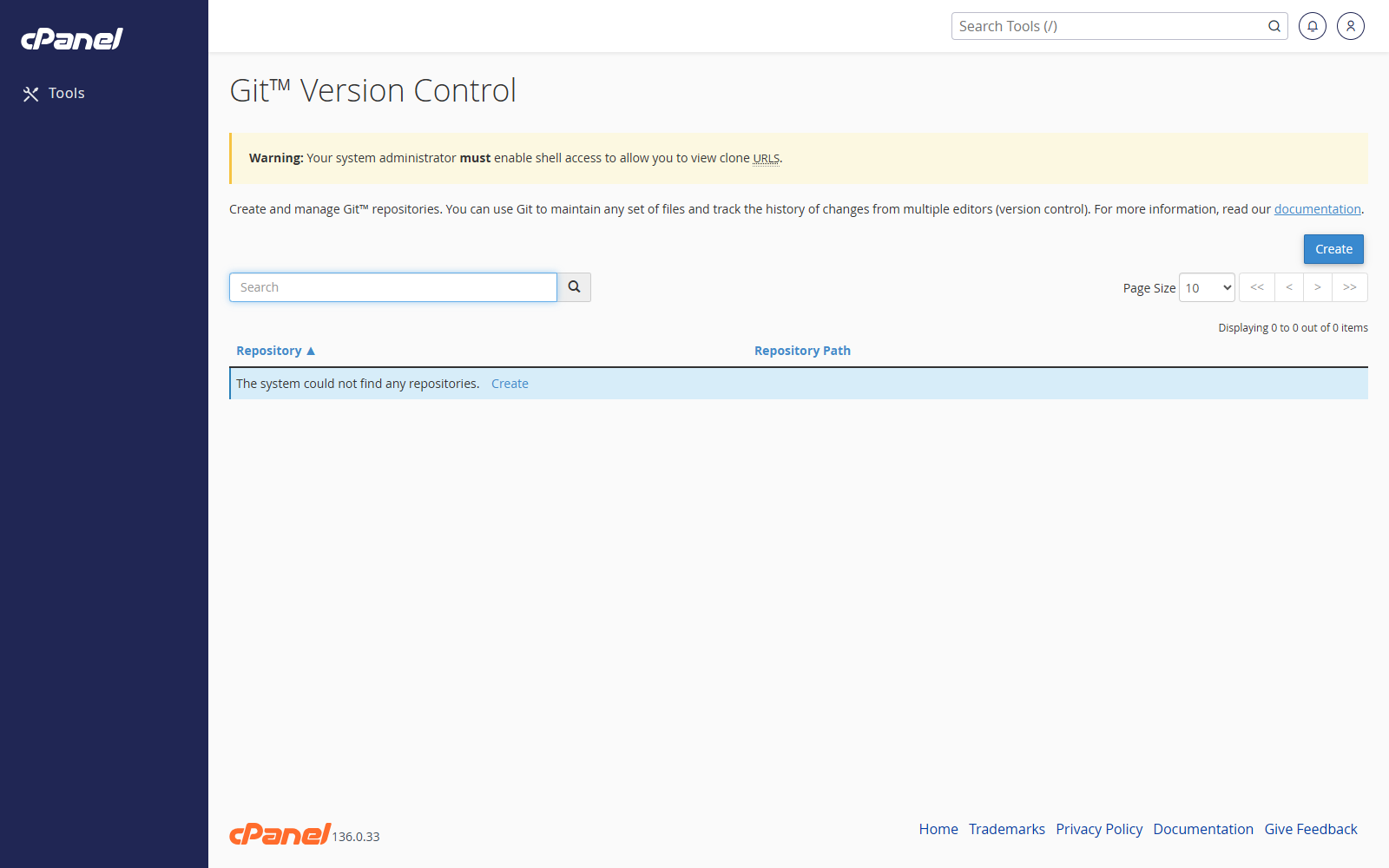
Create a Repository
- Go to Files > Git Version Control.
- Click Create.
- Turn on Clone a Repository if you want to clone an existing remote repository.
- Enter the clone URL if you are cloning.
- Enter the repository path.
- Enter a repository name.
- Click Create.
Manage a Repository
- Go to Files > Git Version Control.
- Find the repository.
- Click Manage.
- Use the available options to view deployment settings, history, or repository details.
Pull Changes
- Go to Files > Git Version Control.
- Open Manage for the repository.
- Click Update from Remote if the option is available.
- Wait for cPanel to finish the update.
Delete a Repository
- Go to Files > Git Version Control.
- Find the repository.
- Click Delete.
- Confirm the deletion.
Notes
- Do not edit repository files in File Manager unless that is part of your workflow.
- Make sure the repository path is correct before creating it.
- Some Git deployment options depend on how the server is configured.