
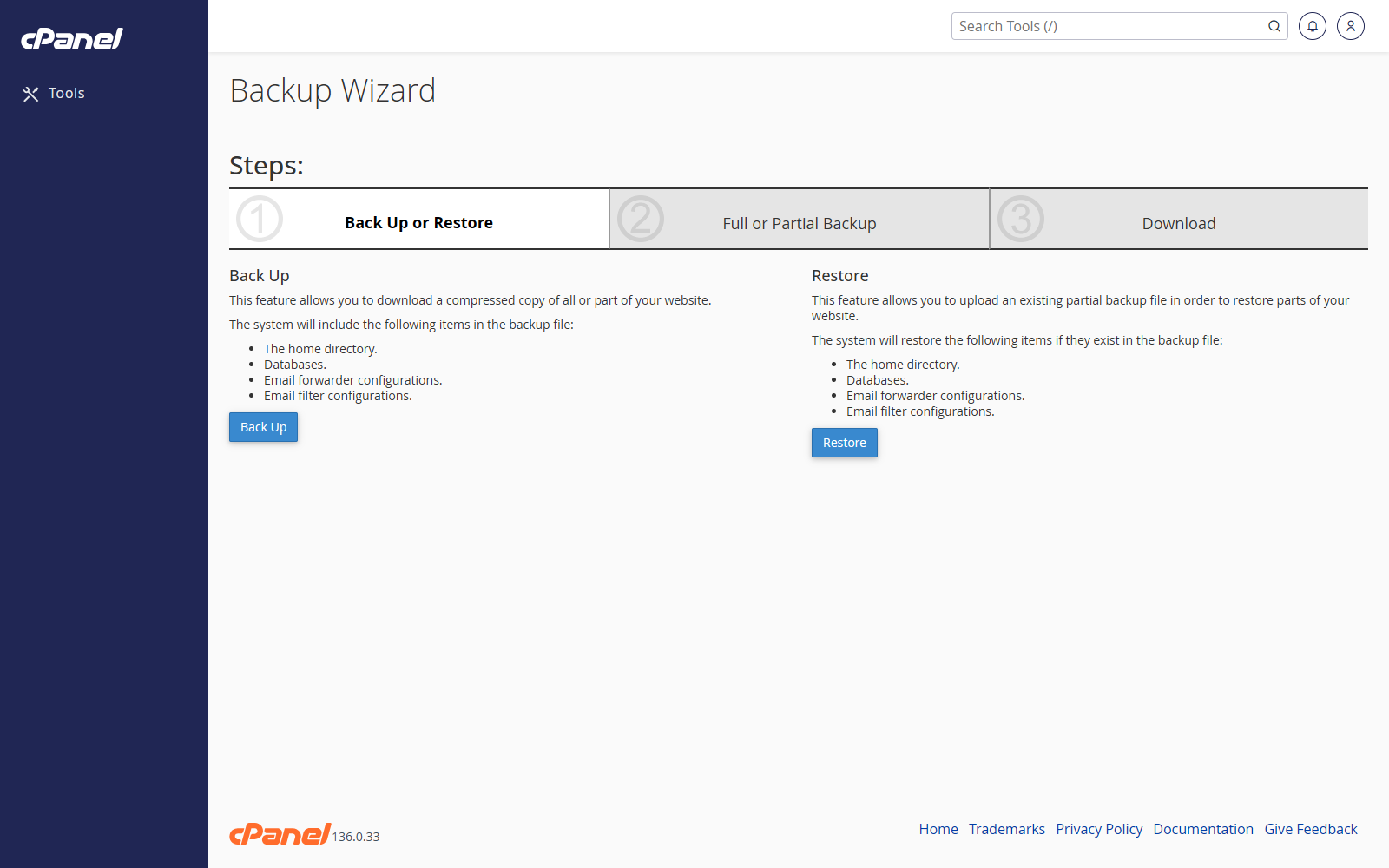
Create a Backup
- Go to Files > Backup Wizard.
- Click Back Up.
- Choose Full Backup or choose a partial backup type.
- For a full backup, choose where cPanel should store it.
- Enter an email address if you want a completion notice.
- Click Generate Backup.
Download a Partial Backup
- Go to Files > Backup Wizard.
- Click Back Up.
- Choose the item you want to download, such as Home Directory or a database.
- Save the file to your computer.
Restore a Partial Backup
- Go to Files > Backup Wizard.
- Click Restore.
- Choose the restore type.
- Click Choose File.
- Select the backup file from your computer.
- Click Upload.
Notes
- Backup Wizard is the simplest backup screen for most users.
- Keep a local copy of important backups.
- Restoring files can overwrite current website files.