
Steps
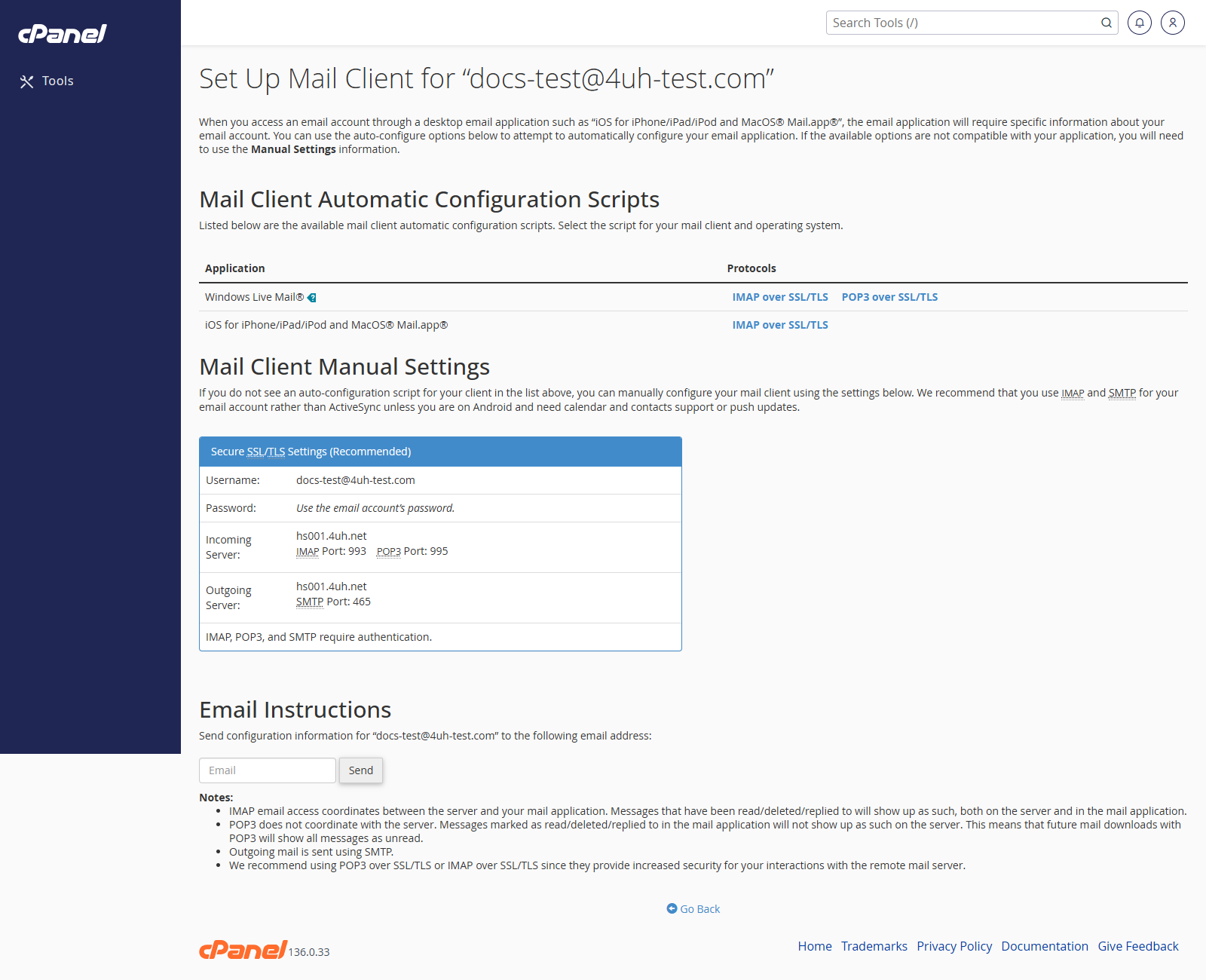
- Log in to cPanel.
- Go to Email > Email Accounts.
- Find the email address you want to set up.
- Click Connect Devices.
- Look for the Mail Client Manual Settings section.
- Use the Secure SSL/TLS Settings wherever possible.
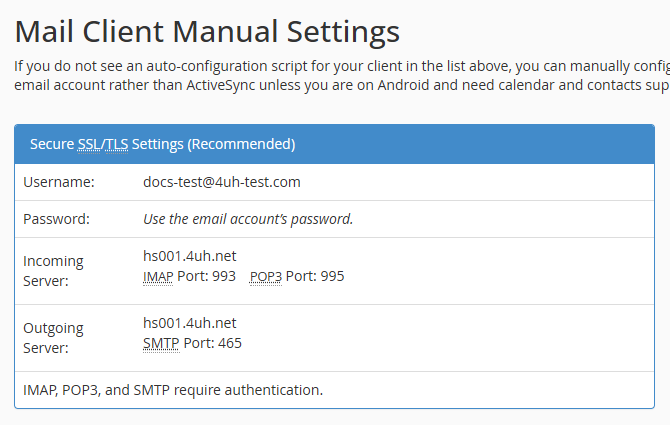
- Enter the incoming server, outgoing server, username, password, and ports into your mail app.
- Save the account in your mail app and test sending and receiving.
Use an Automatic Setup Script
- Go to Email > Email Accounts.
- Click Connect Devices next to the address.
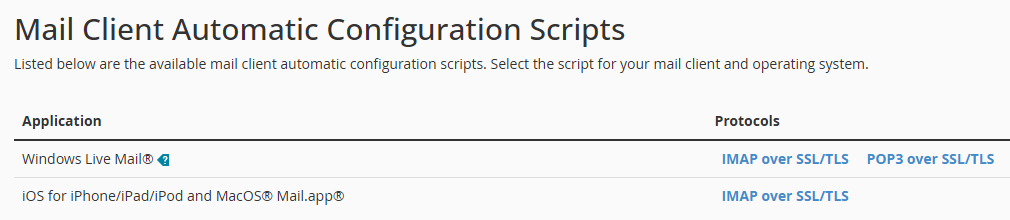
- Find your mail app in the automatic configuration list.
- Choose the SSL/TLS option for your app.
- Follow the prompts to download and run the configuration file.
- Enter the email account password if your device asks for it.
Notes
- Use IMAP if you want mail to stay on the server and sync across devices.
- POP3 may download messages and remove them from the server, depending on your mail app settings.
- If your mail app is not listed, use the manual settings.