
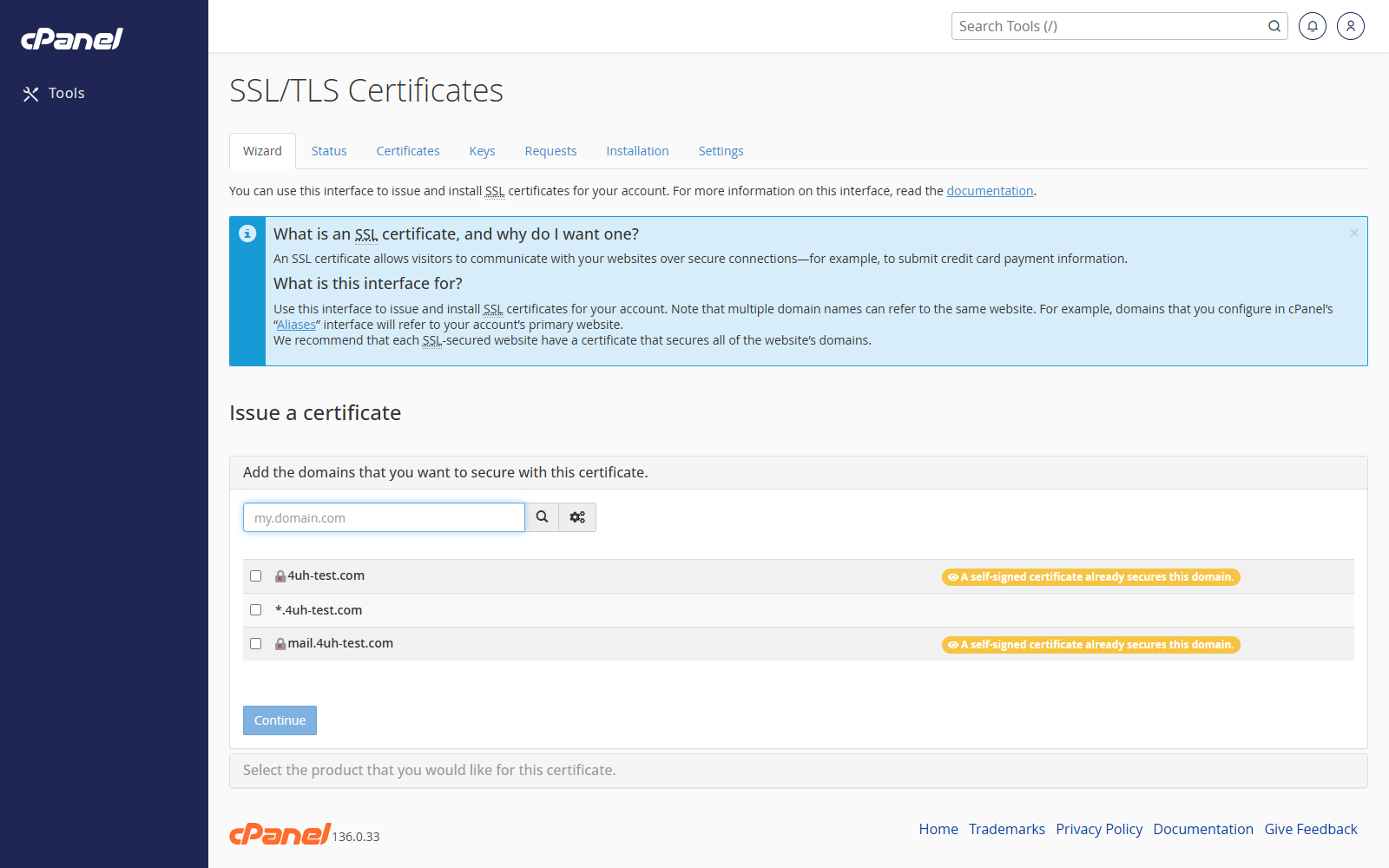
Open SSL/TLS
- Go to Security > SSL/TLS.
- Choose the SSL tool you need.
Generate a Private Key
- Click Generate, view, upload, or delete your private keys.
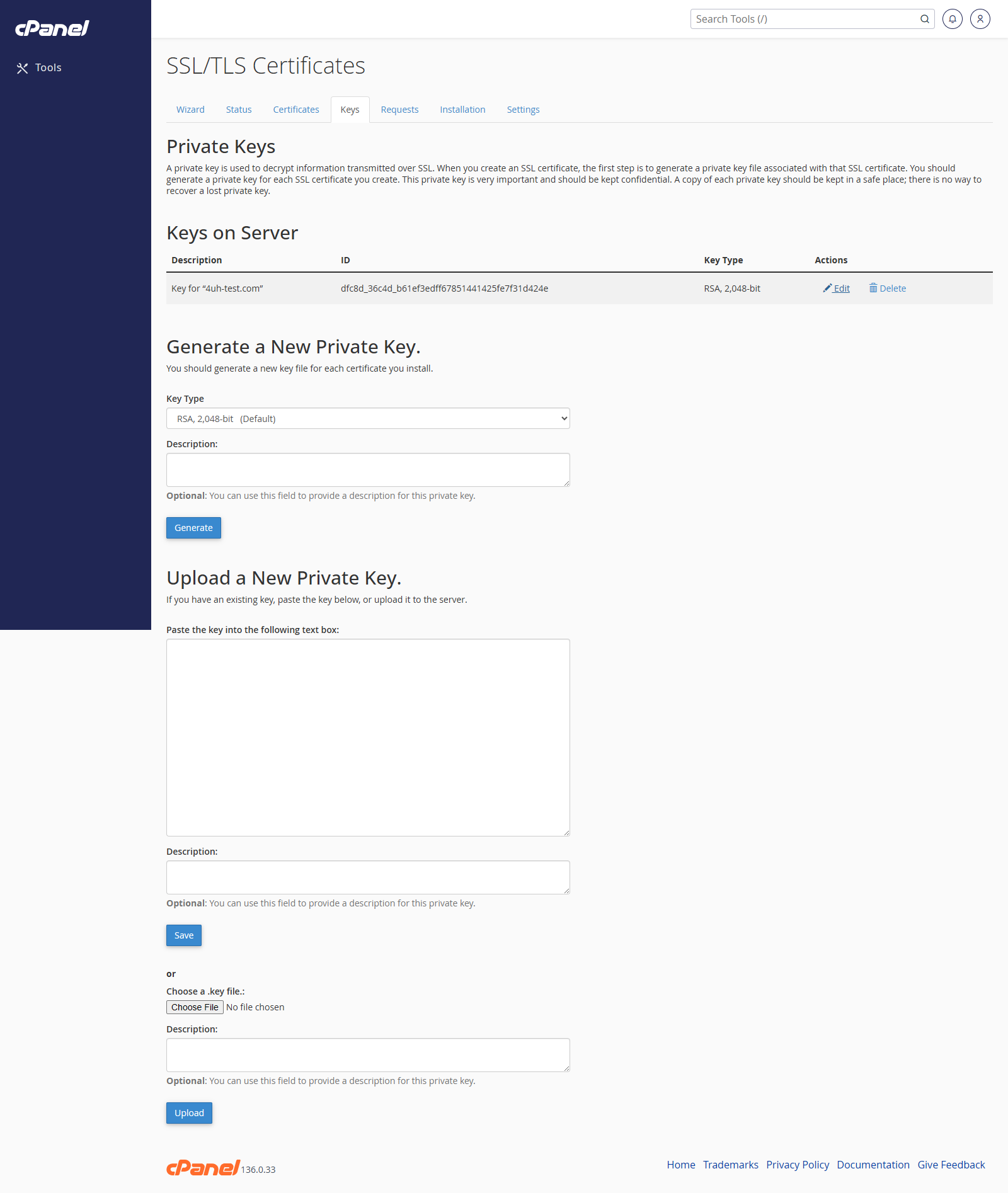
- Choose the key type and size if cPanel asks.
- Enter a description.
- Click Generate.
Generate a CSR
- Click Generate, view, or delete SSL certificate signing requests.
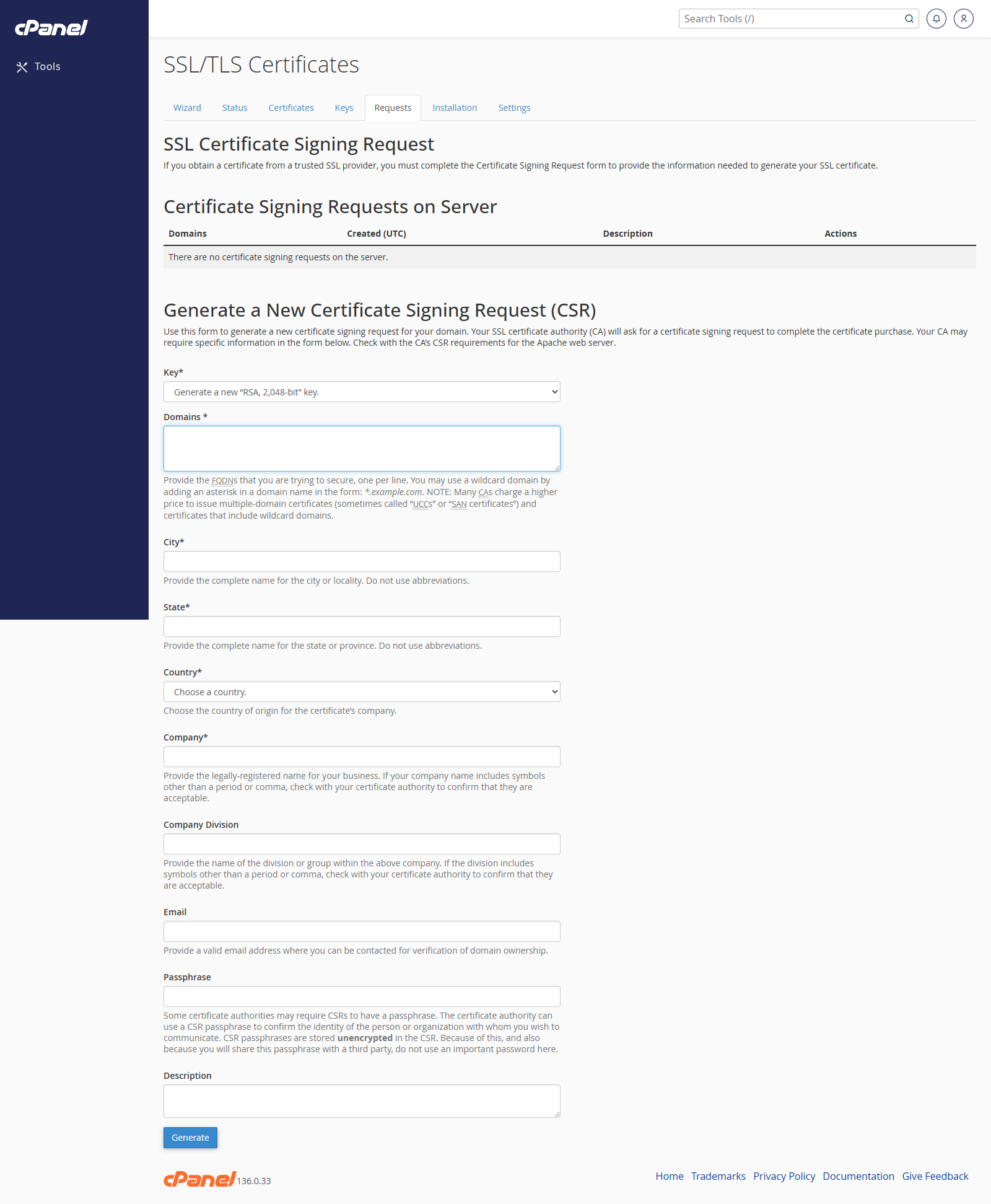
- Choose the domain.
- Enter the contact and organisation details requested by cPanel.
- Click Generate.
Upload or Manage a Certificate
- Click Generate, view, upload, or delete SSL certificates.
- Paste the certificate or upload the certificate file.
- Save the certificate.
Install SSL for a Website
- Click Manage SSL sites.
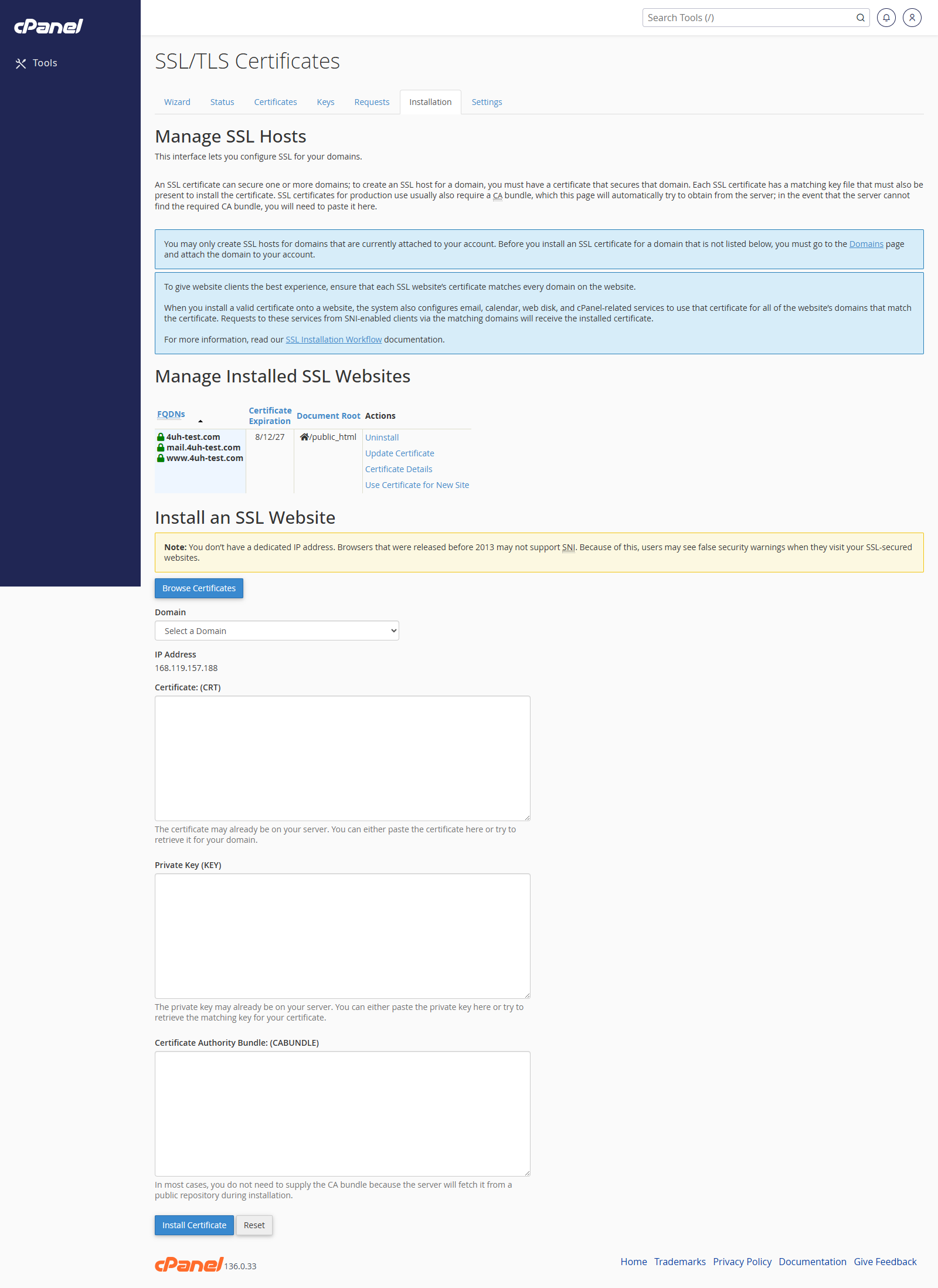
- Choose the domain.
- Paste the certificate, private key, and CA bundle if needed.
- Click Install Certificate.
Notes
- Most sites use AutoSSL, so manual SSL tools are only needed in specific cases.
- Keep private keys secure.
- If your cPanel uses the newer tabbed SSL interface, the same tools may appear under SSL/TLS Certificates.