
Steps
- Log in to cPanel.
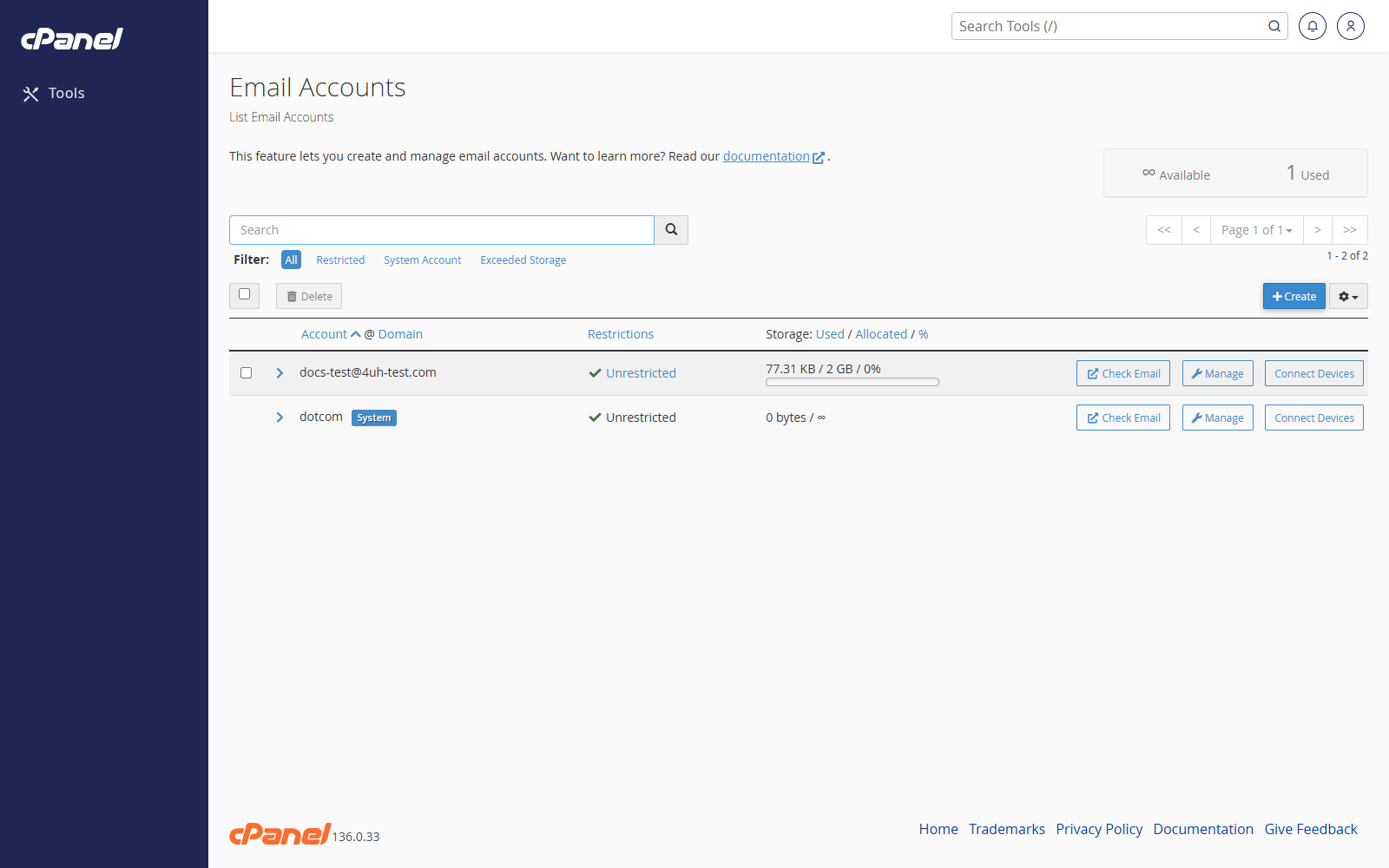
- Go to Email > Email Accounts.
- Use the search box if you need to find a specific email account.
- Click Check Email to open the mailbox in Webmail.
- Click Manage to change the password, storage limit, restrictions, or other account settings.
- Click Connect Devices to get the mail settings for Outlook, Apple Mail, mobile devices, or another mail app.
- Click the account row or the more-options icon if you need extra actions, such as deleting the account.
Create a New Email Account
- Click Create.
- Enter the mailbox name, choose the domain, and set the password.
- Click Create again.
Delete an Email Account
- Find the email account in the list.
- Open the account actions.
- Click Delete.
- Confirm the deletion.
Notes
- Deleting an email account permanently removes its mail and data.
- You cannot delete the cPanel system user email account.
- Your hosting provider controls how many email accounts you can create.