
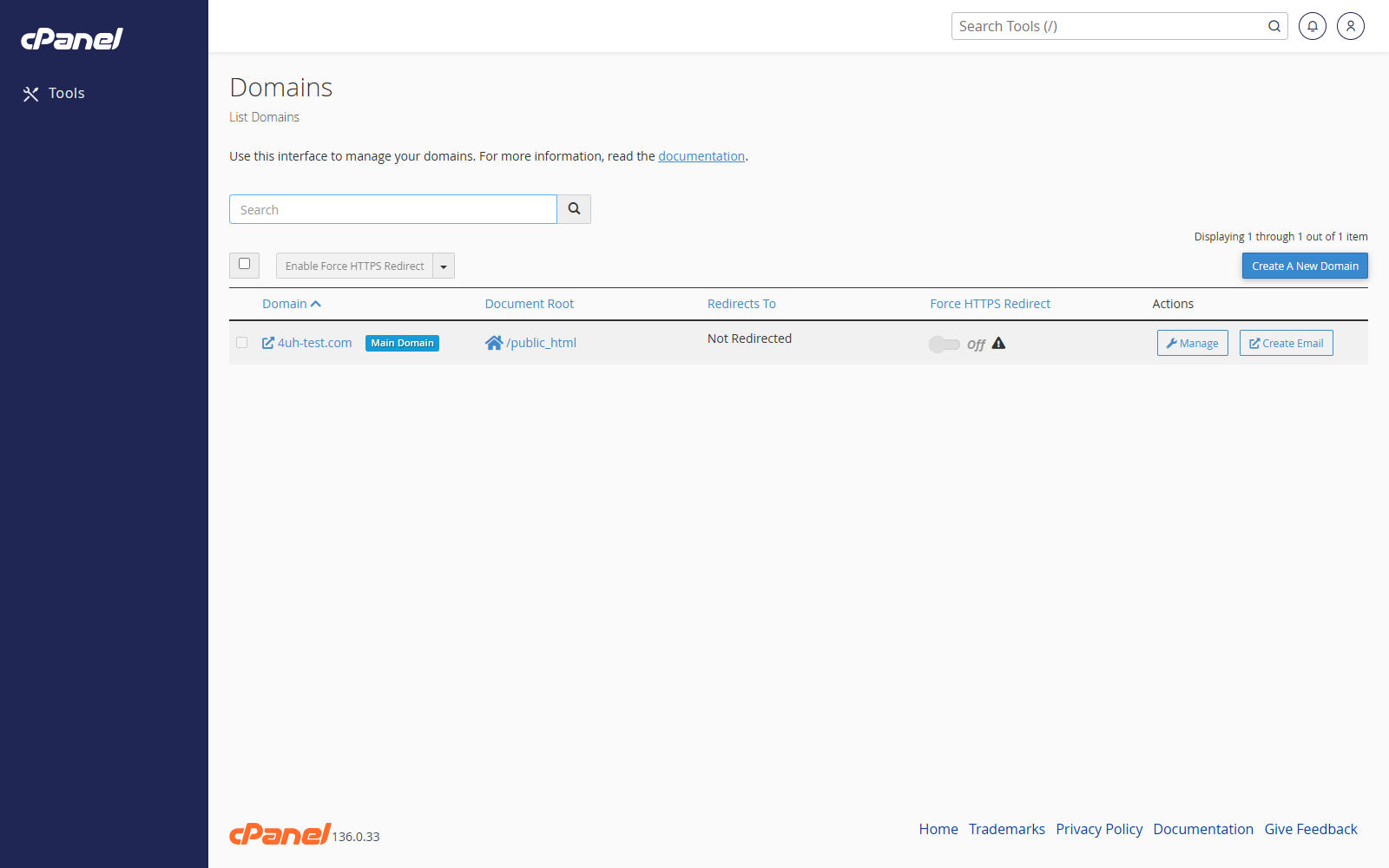
View Your Domains
- Go to Domains > Domains.
- Review the list of domains on the account.
- Use the search box if you need to find a specific domain.
- Click the document root path if you want to open that domain’s files in File Manager.
Add a Domain
- Go to Domains > Domains.
- Click Create a New Domain.
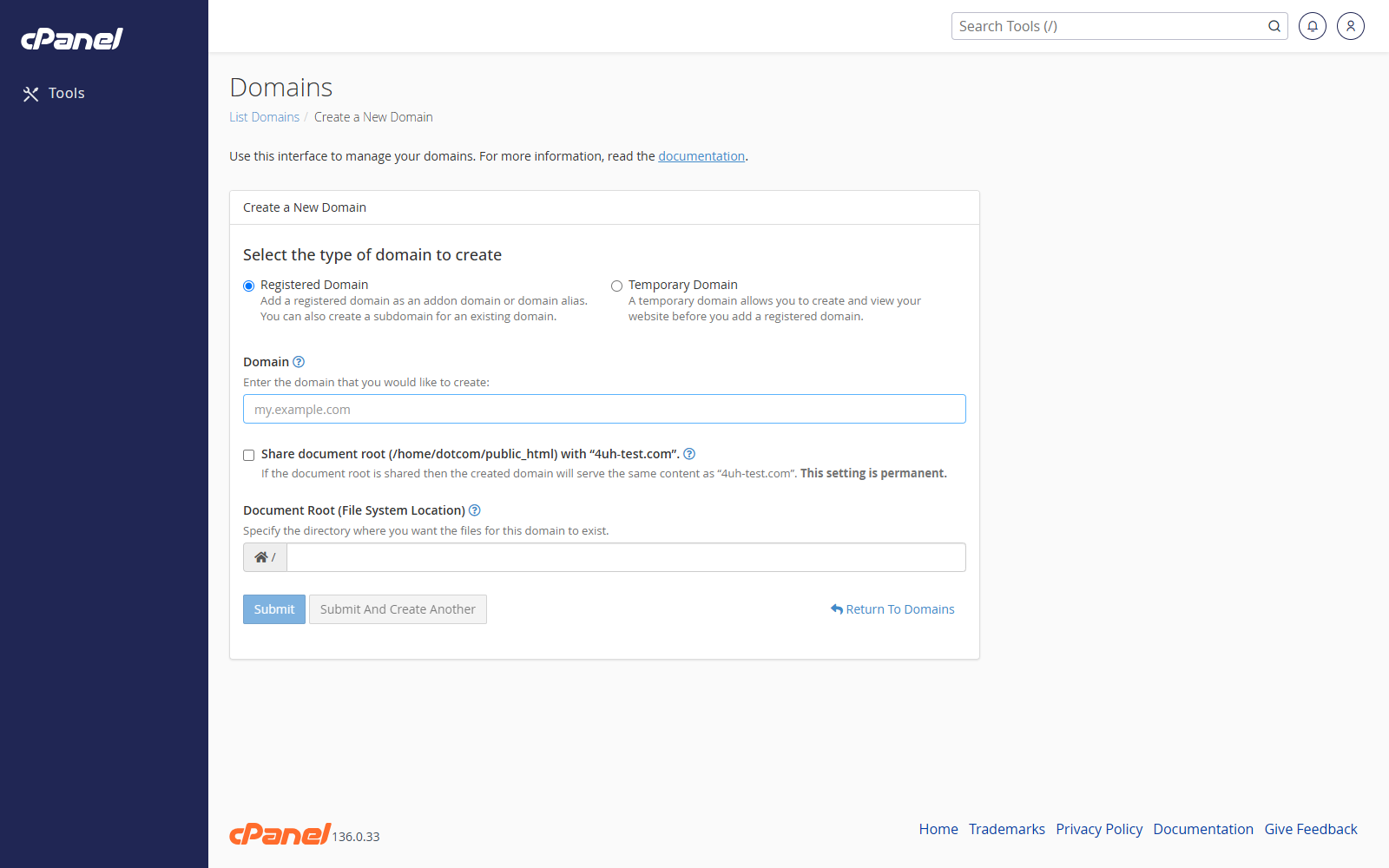
- Enter the domain name.
- Choose whether the domain should share the same document root as another domain.
- Check or change the document root.
- Click Submit.
Manage a Domain
- Go to Domains > Domains.
- Find the domain.
- Click Manage.
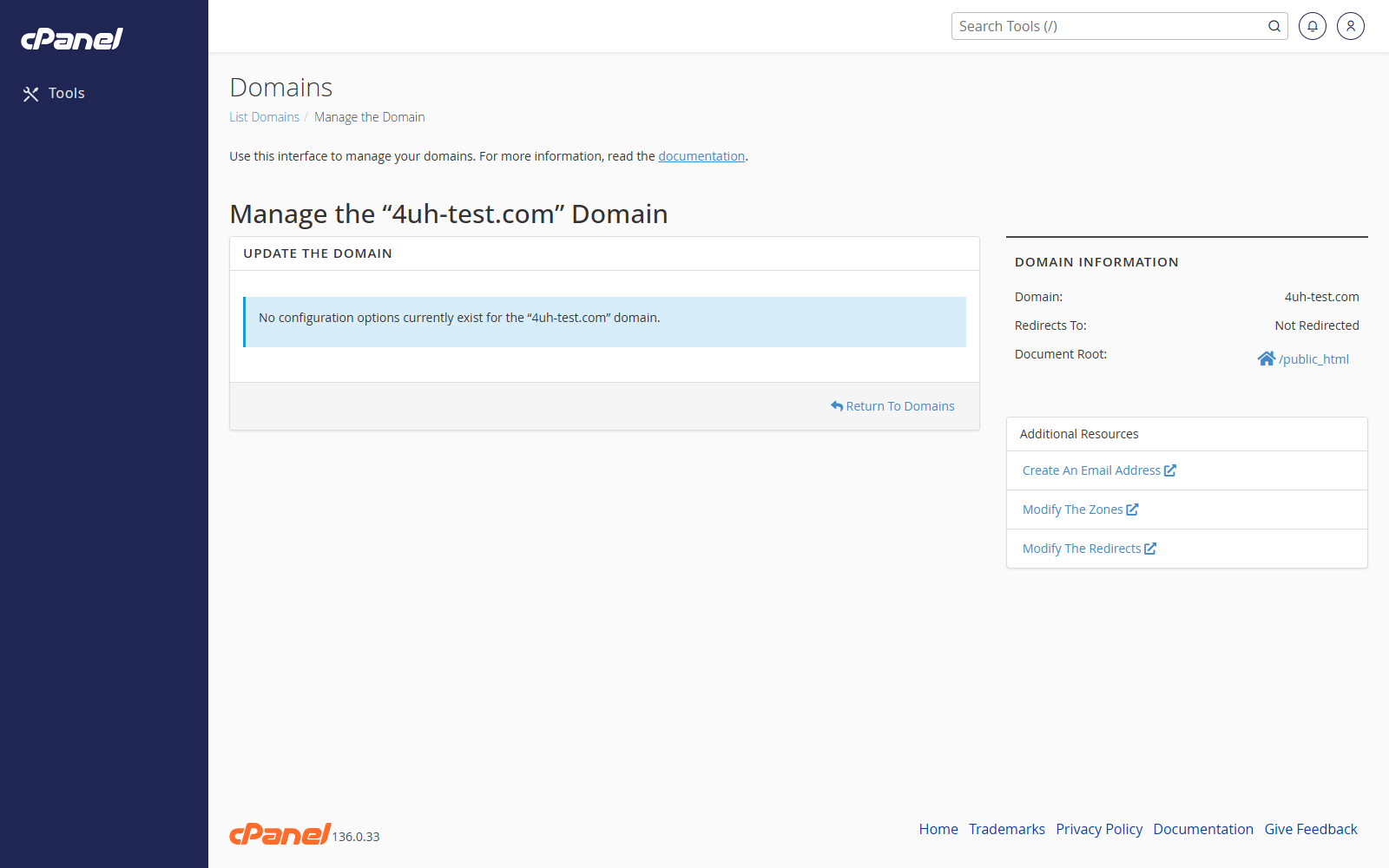
- Change the available settings.
- Save the changes.
Remove a Domain
- Go to Domains > Domains.
- Find the domain.
- Click Manage.
- Click Remove Domain.
- Confirm the removal.
Force HTTPS Redirect
- Go to Domains > Domains.
- Find the domain.
- Use the Force HTTPS Redirect switch.
- If the switch is unavailable, check that the domain has a valid SSL certificate.
Notes
- Removing a domain from cPanel does not always delete its files.
- DNS and registration changes are handled separately from the Domains screen.
- Website files normally live in the domain’s document root.