
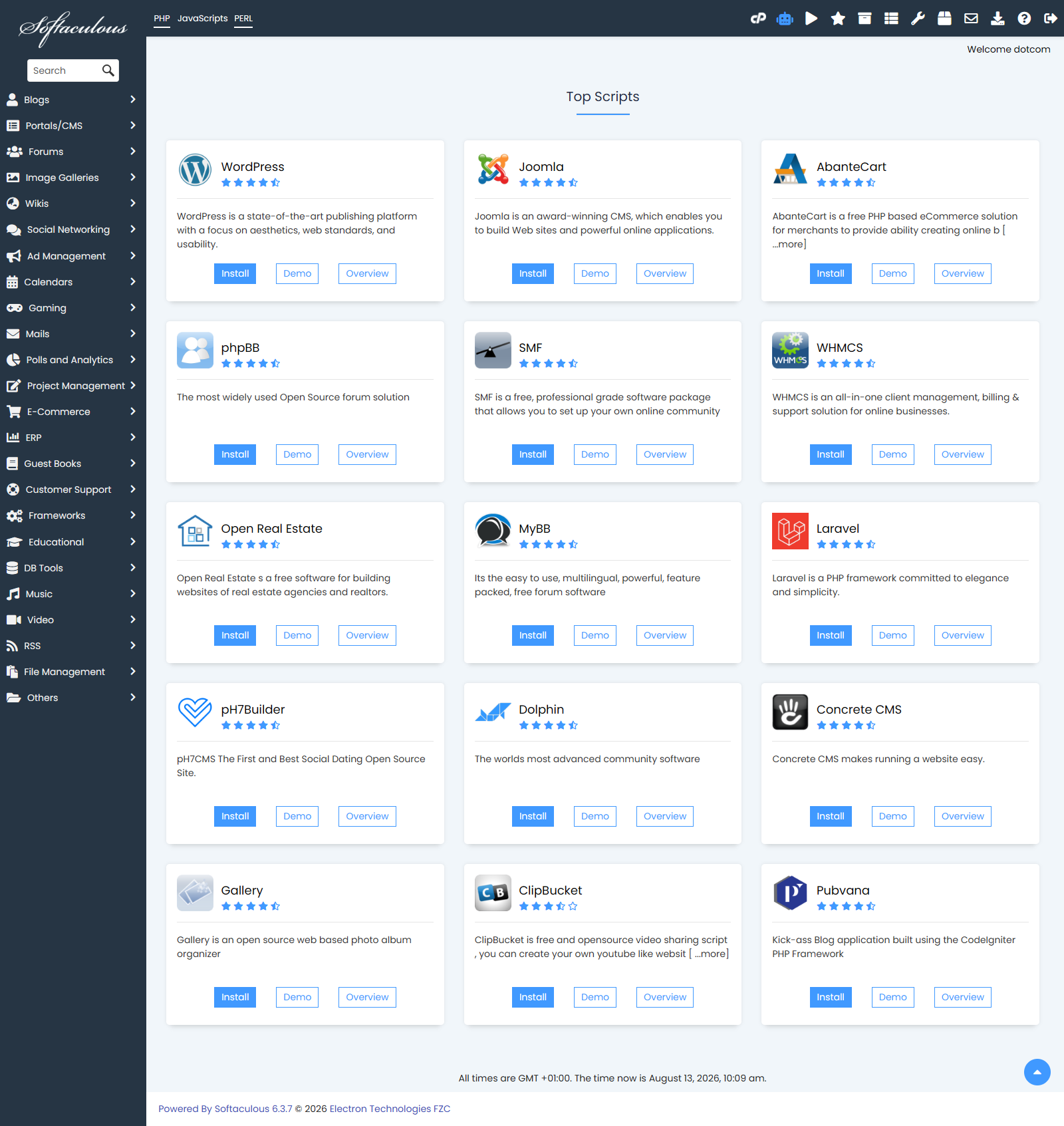
Open Softaculous
- Go to Software > Softaculous Apps Installer.
- Choose the app you want to install.
- For WordPress, click WordPress.
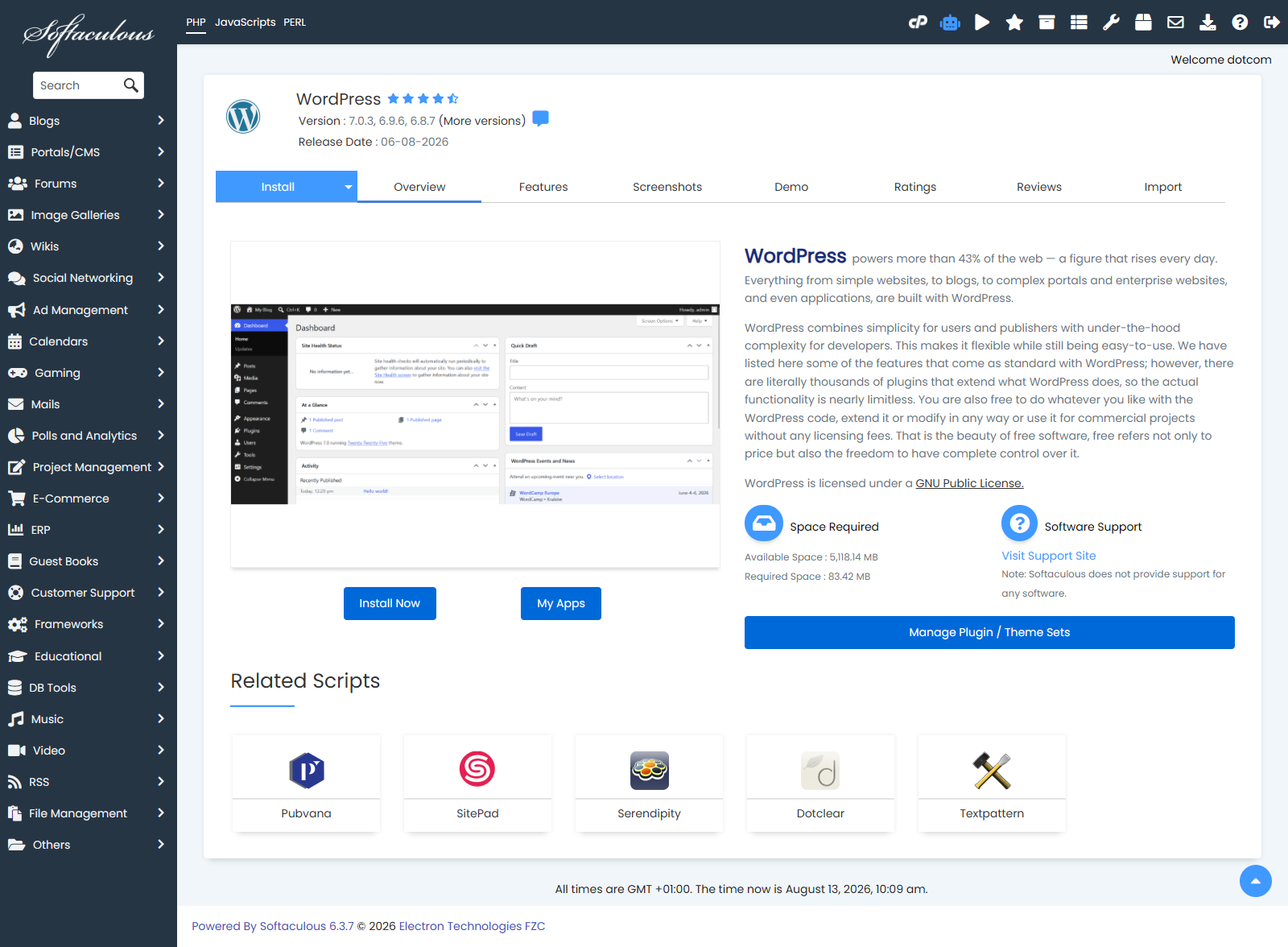
Start the Installation
- Click Install or Install Now.
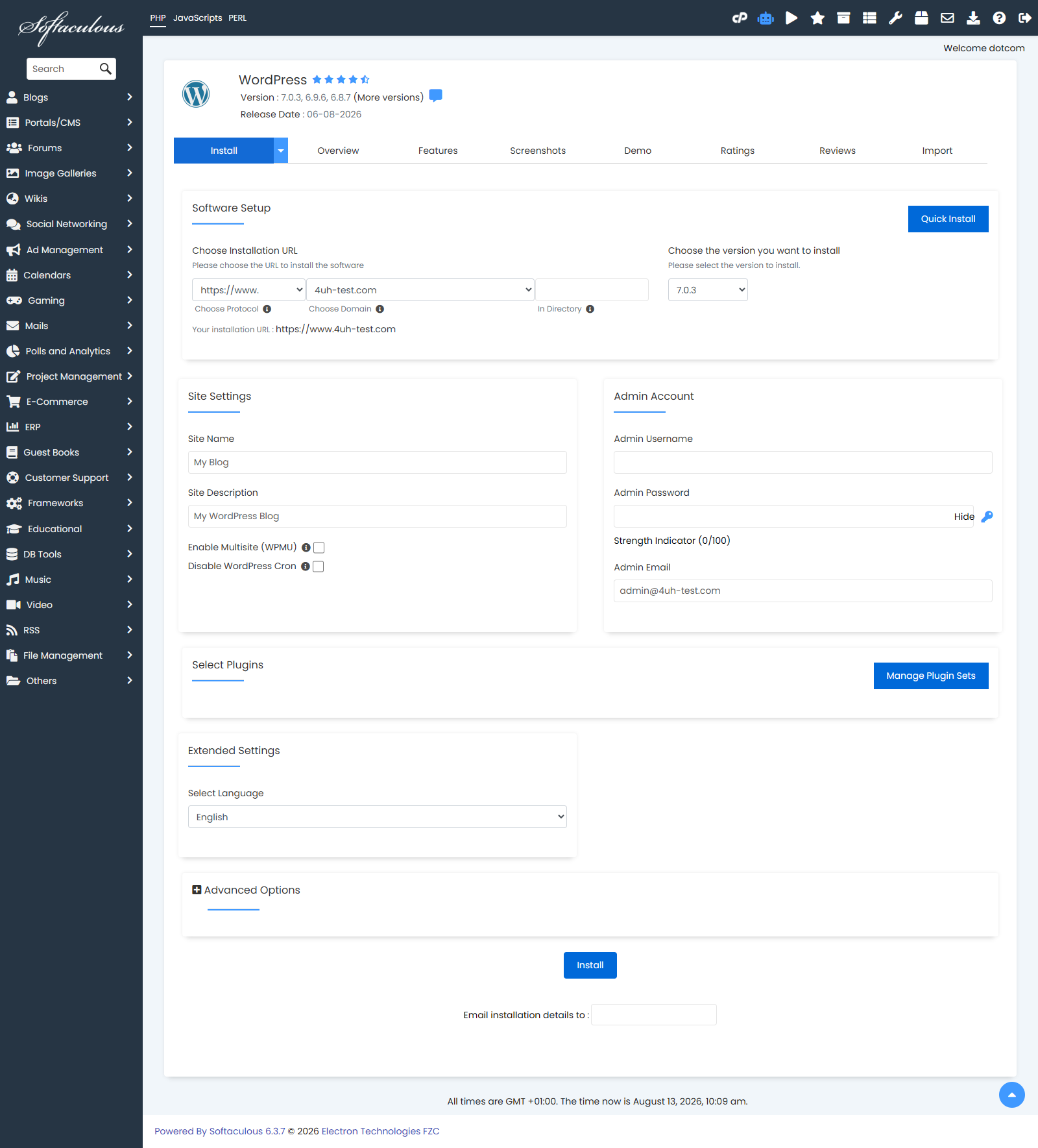
- Choose the protocol, such as https://.
- Choose the domain.
- Leave In Directory empty if the app should install on the main domain.
- Enter a folder name only if the app should install in a subfolder.
Enter the Site Details
- Enter the site name.
- Enter the site description if the installer asks for it.
- Choose any site settings you need.
Create the Admin Login
- Enter the admin username.
- Enter a strong admin password.
- Enter the admin email address.
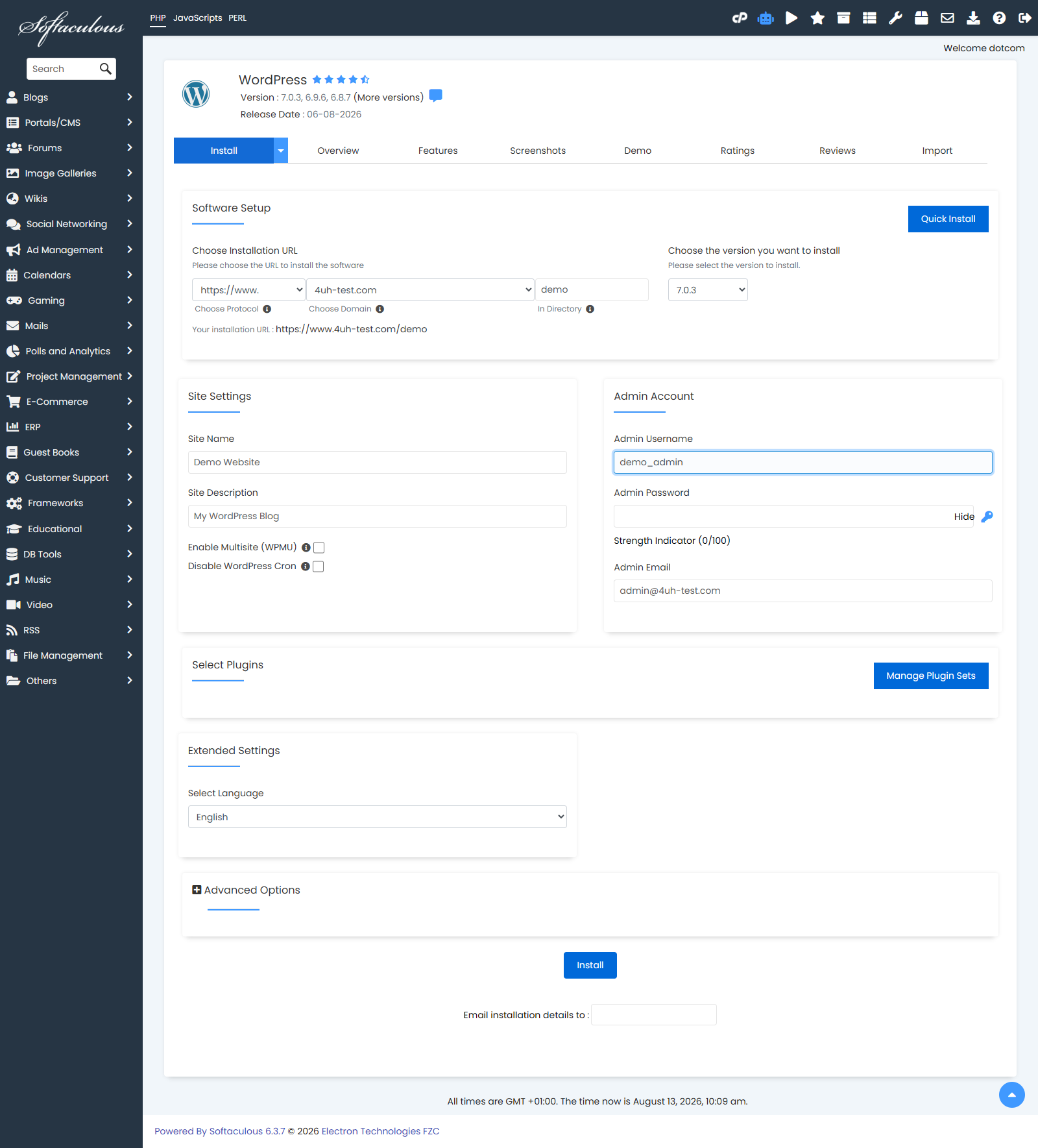
Finish the Installation
- Check the installation settings.
- Click Install.
- Wait for Softaculous to finish.
- Save the admin URL and login details.
Manage an Existing Installation
- Open Softaculous Apps Installer.
- Open All Installations or the installations list.
- Use the available options to log in, update, clone, stage, back up, or remove the installation.
Notes
- Leave In Directory empty for an install at the domain root.
- Use a strong password and a real admin email address.
- Delete unused installations to reduce security risk.