
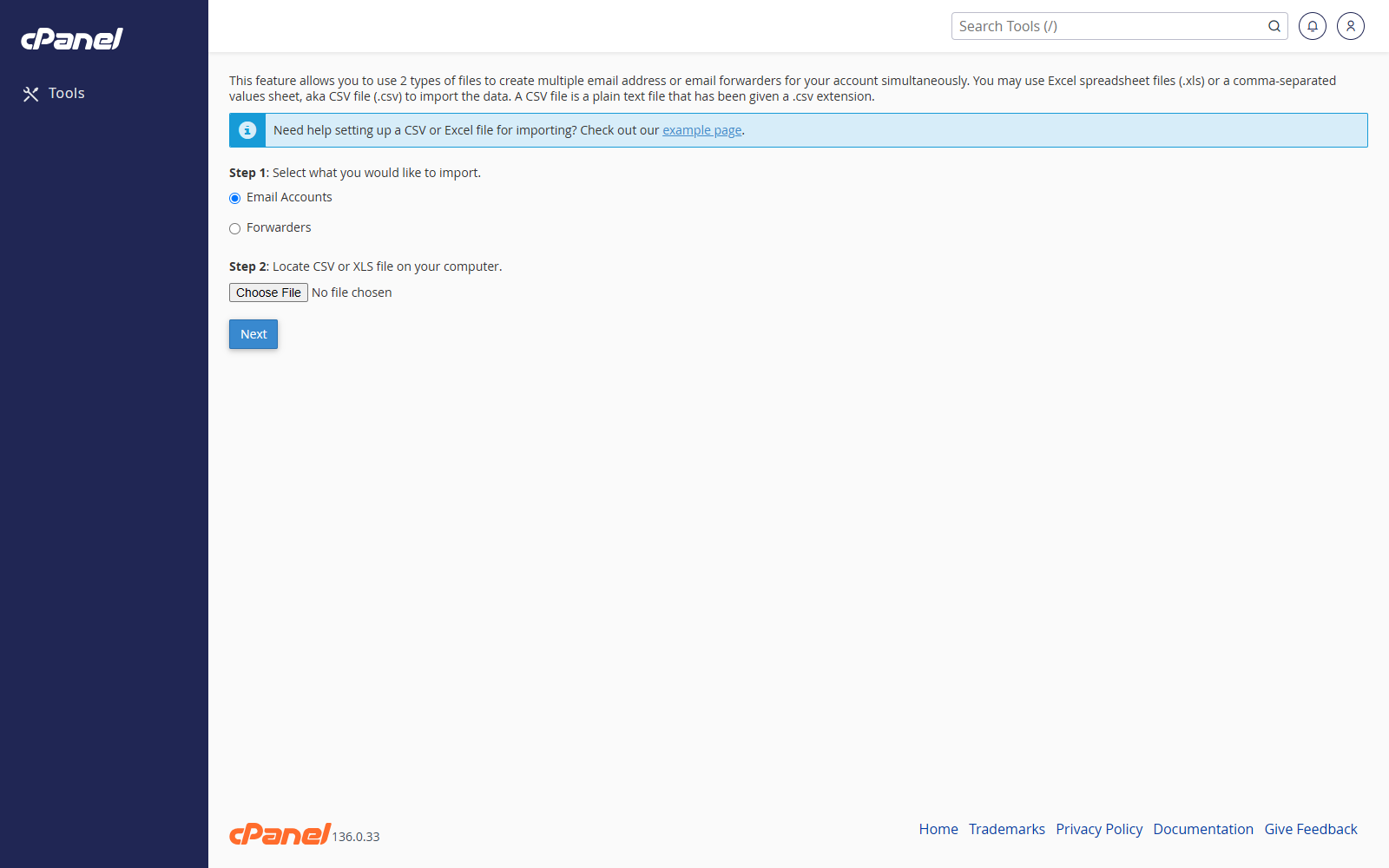
Prepare the Import File
- Create a spreadsheet or CSV file.
- Add one email address or forwarder per row.
- For email accounts, include the password in the same row.
- For CSV files, use a consistent separator, such as a comma.
- Save the file as
.csvor.xls.
Steps
- Log in to cPanel.
- Go to Email > Address Importer.
- Choose E-mail Accounts or Forwarders.
- Click Choose File and select your import file.
- If you are importing a CSV file, choose the delimiter used in the file.
- Select Treat first row as column headers if your file has headings in the first row.
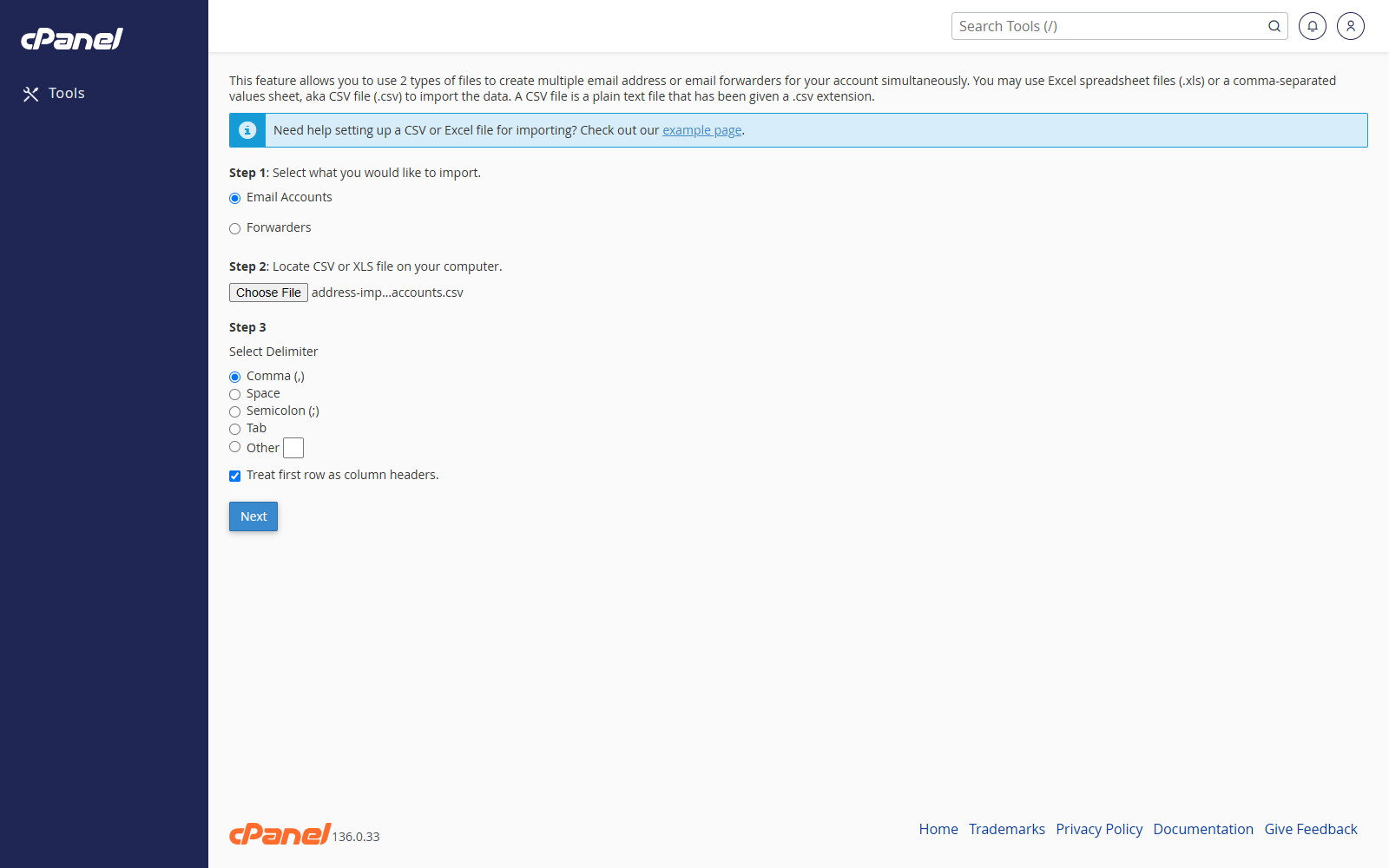
- Click Next.
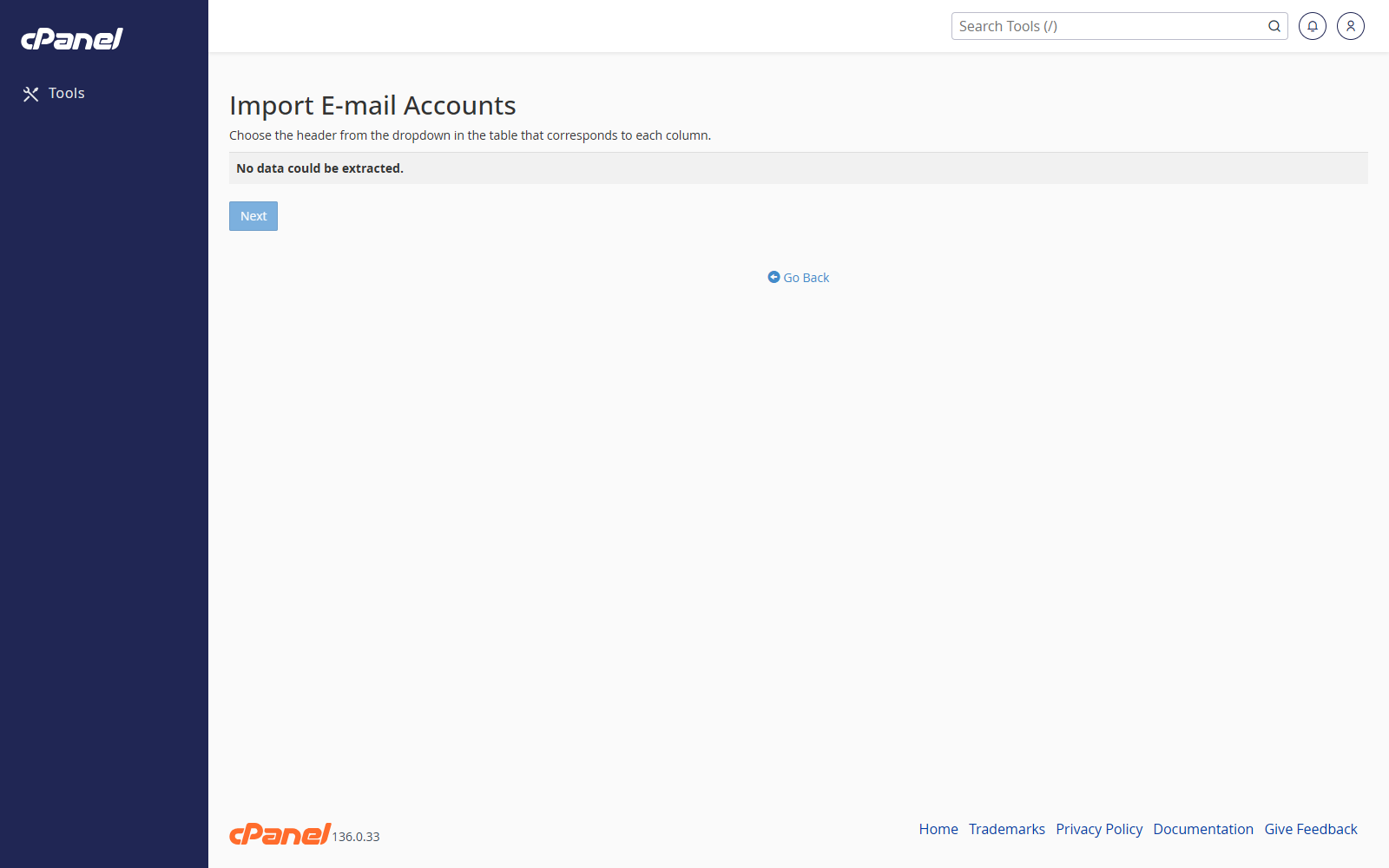
- Match the file columns to the correct cPanel fields.
- Set unused columns to Ignore.
- Choose the domain from the Domain menu.
- Click Next.
- Review the import.
- Click Finish.
Notes
- Passwords must meet the server’s password strength rules.
- After the import finishes, click Import More if you need to upload another file.