
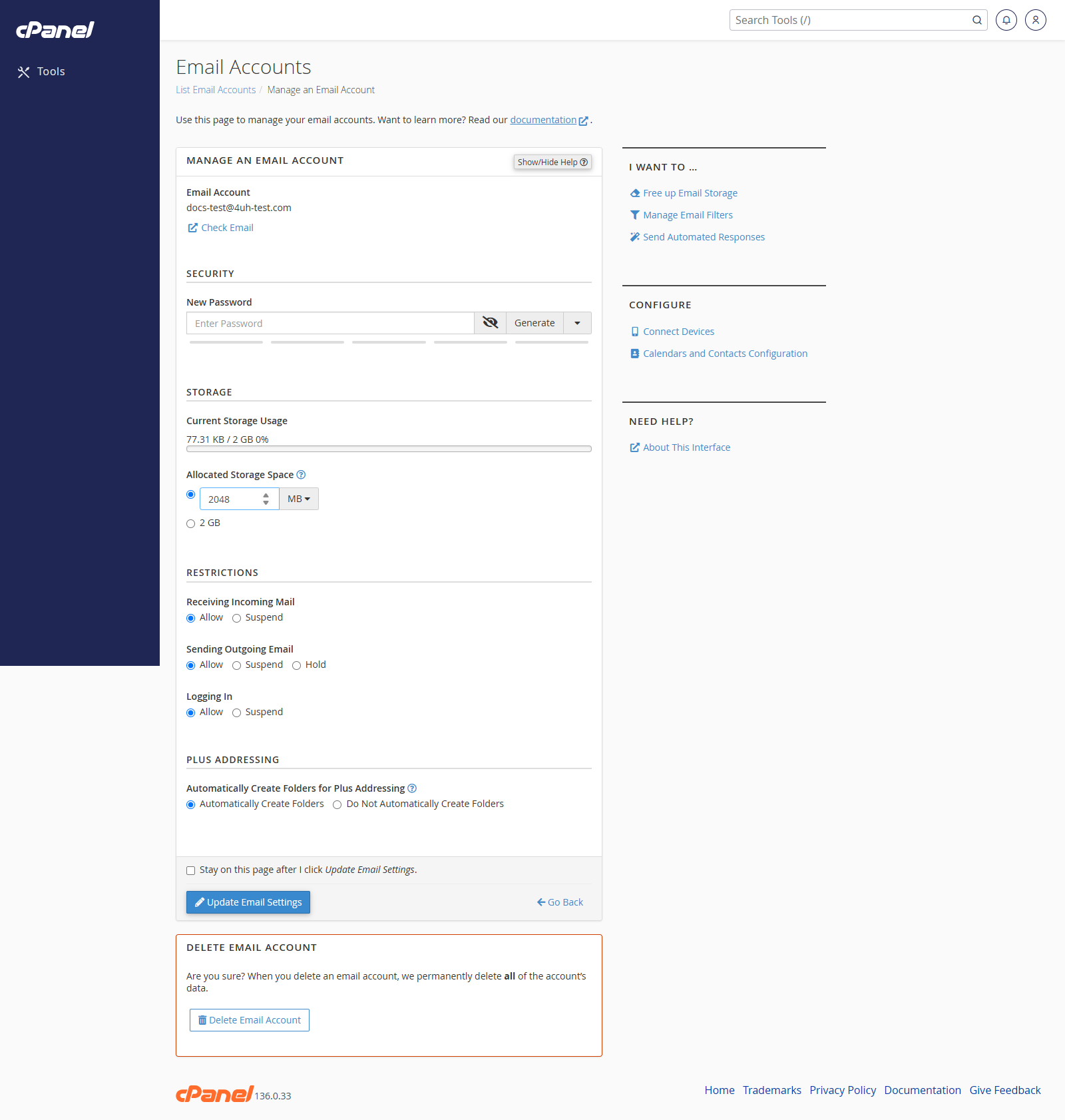
Steps
- Log in to cPanel.
- Go to Email > Email Accounts.
- Find the email address you want to edit.
- Click Manage.
- Update the settings you need to change.
- Click Update Email Settings when you are finished.
Change the Password
- Open the account with Manage.
- Find the Security section.
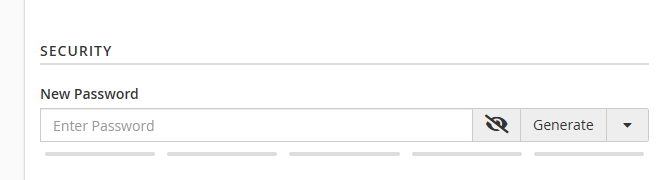
- Enter a new password, or click Generate to create one.
- Click Update Email Settings.
Change the Storage Limit
- Open the account with Manage.
- Find the Storage section.
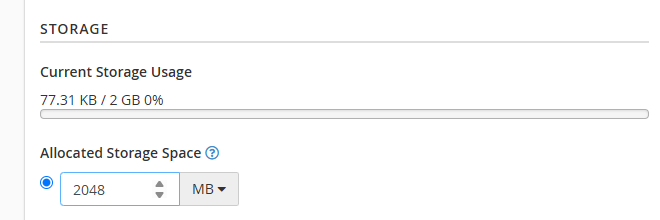
- Enter a custom mailbox size, or choose Unlimited if available.
- Click Update Email Settings.
Suspend or Restrict an Account
- Open the account with Manage.
- Find the Restrictions section.
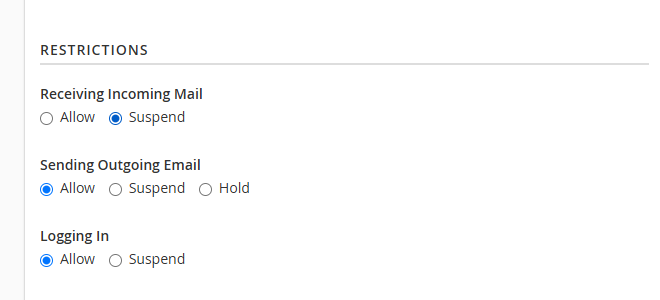
- Choose whether the account can log in, receive mail, or send mail.
- Click Update Email Settings.
Delete the Email Account
- Open the account with Manage.
- Click Delete Email Account.
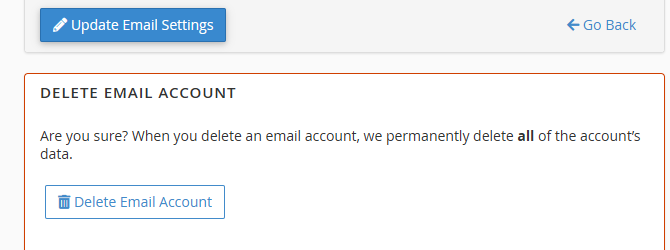
- Confirm the deletion.
Notes
- You cannot rename an email account. To use a different address, create a new account or add a forwarder.
- Deleting an email account permanently deletes the mailbox data.
- The system user email account has fewer options than normal email accounts.