
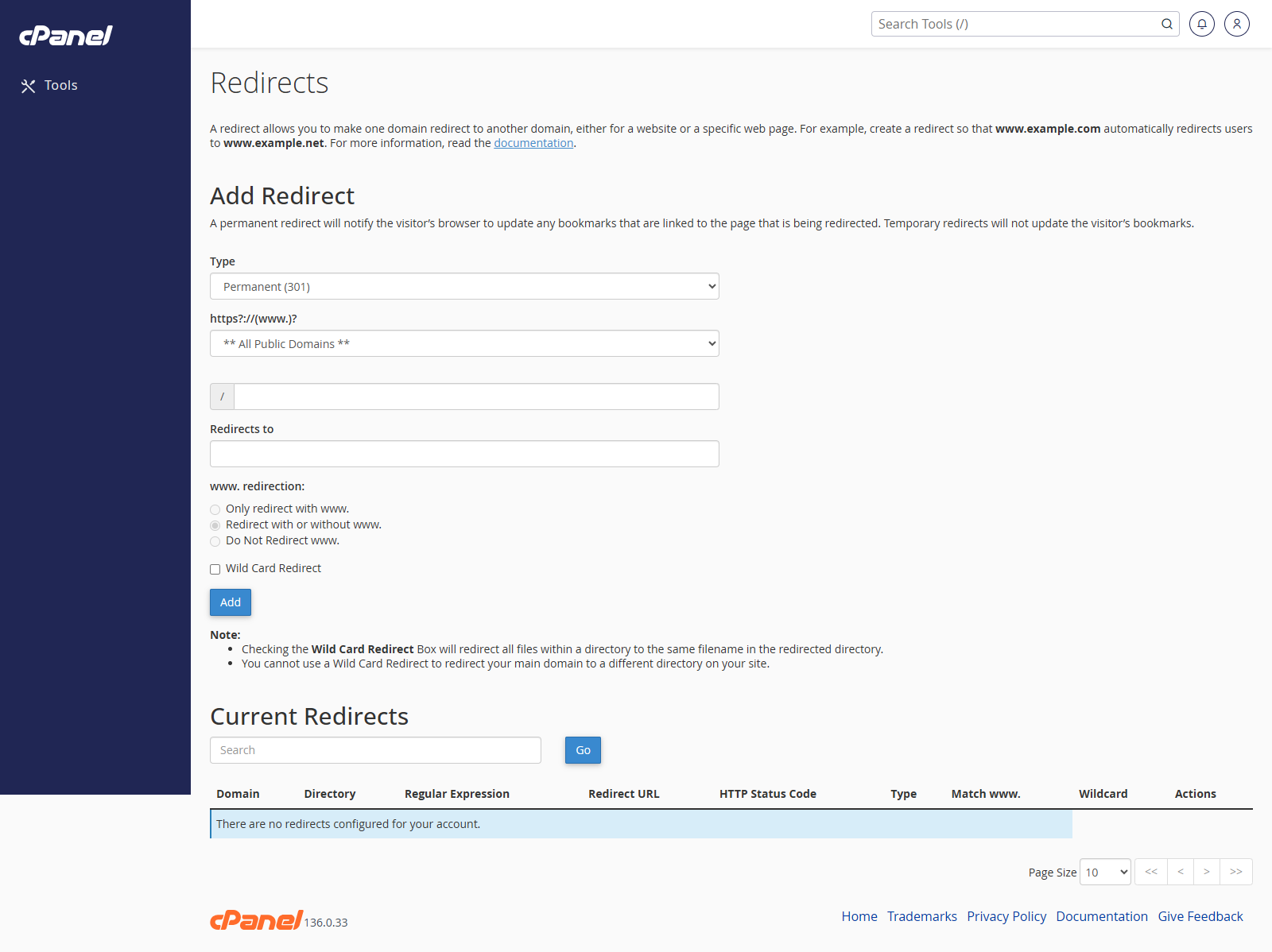
Add a Redirect
- Go to Domains > Redirects.
- Choose Permanent (301) or Temporary (302).
- Choose the domain.
- Enter the page or folder path if only part of the site should redirect.
- Enter the full destination URL in Redirects to.
- Choose how cPanel should handle
www. - Tick Wild Card Redirect only if every matching file should redirect to the same filename at the new location.
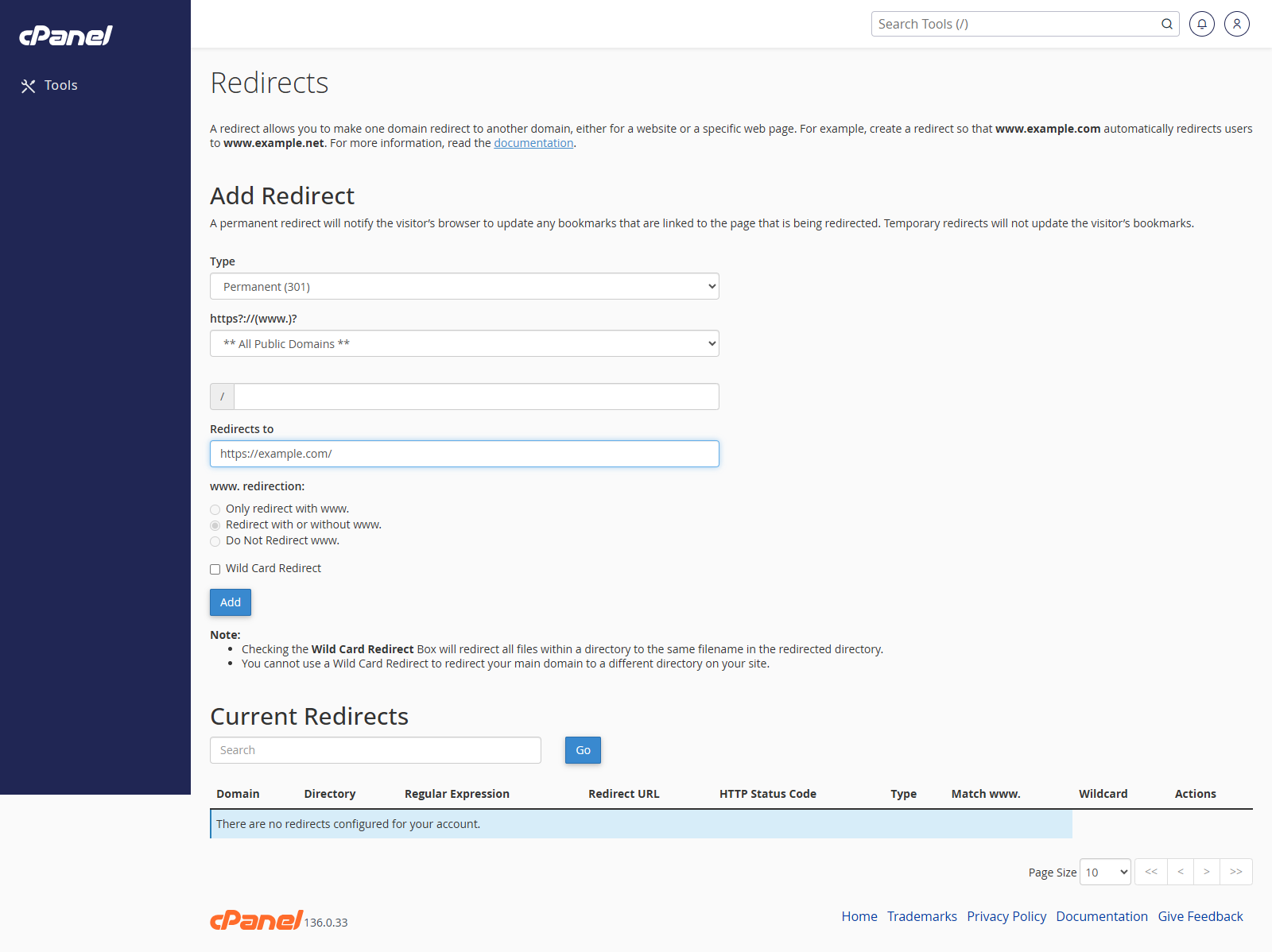
- Click Add.
Test a Redirect
- Go to Domains > Redirects.
- Find the redirect in Current Redirects.
- Click the source URL.
- Check that the browser opens the correct destination.
Delete a Redirect
- Go to Domains > Redirects.
- Find the redirect in Current Redirects.
- Click Delete.
- Confirm the deletion.
Notes
- cPanel redirects are added to the site’s
.htaccessfile. - You cannot edit an existing redirect. Delete it and create a new one.
- Browser caching can make old redirects appear to keep working after deletion.