
Steps
- Log in to cPanel.
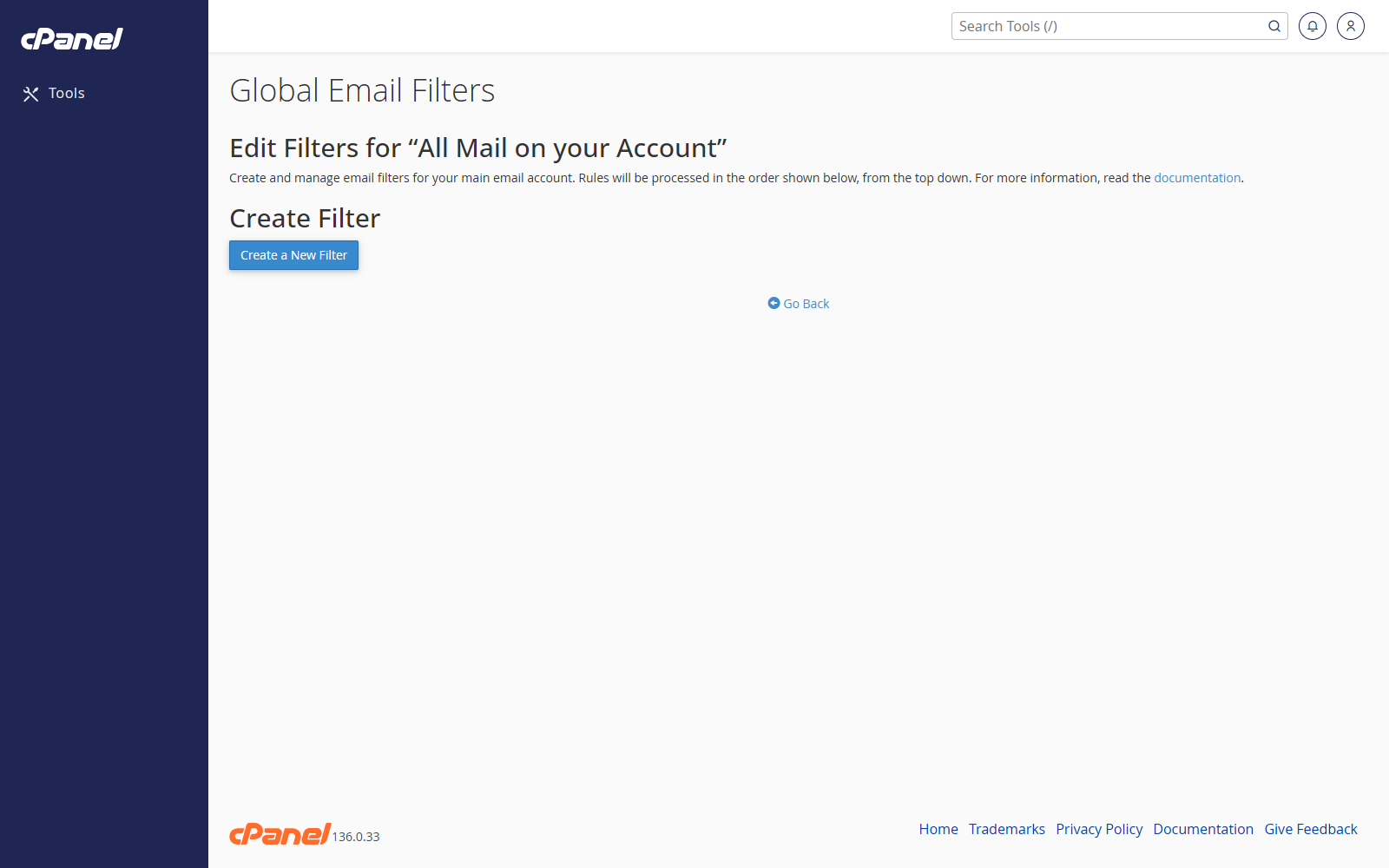
- Go to Email > Global Email Filters.
- Click Create a New Filter.
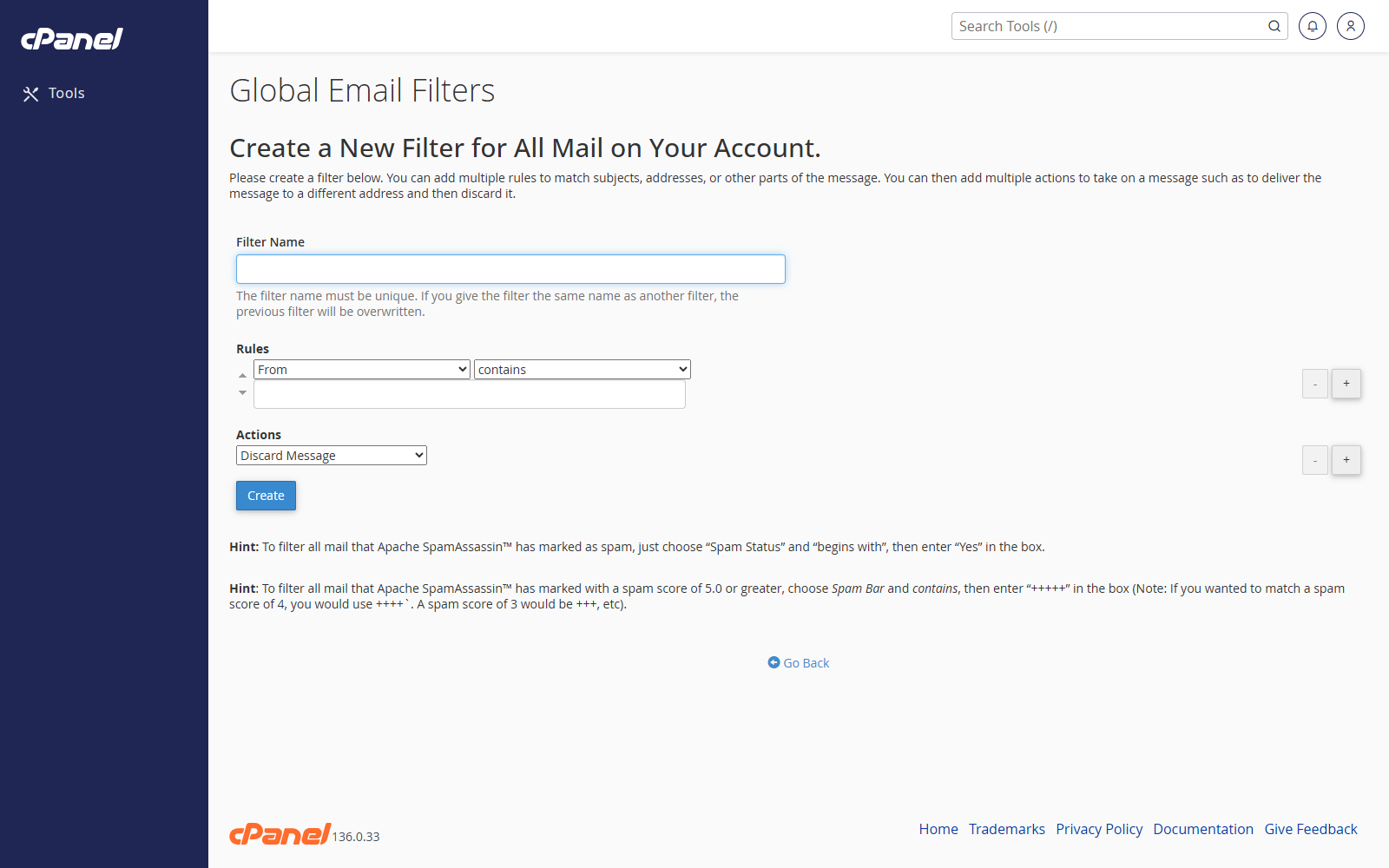
- Enter a filter name.
- Set the rule. For example, choose Subject, contains, and enter a keyword.
- Choose the action cPanel should take when the rule matches.
- Click Create.
Create a Wildcard Redirect
- Go to Email > Global Email Filters.
- Click Create a New Filter.
- Enter a filter name.
- Create a rule that matches the address pattern you want.
- Choose Redirect to Email as the action.
- Enter the destination email address.
- Click Create.
Edit a Filter
- Go to Email > Global Email Filters.
- Find the filter.
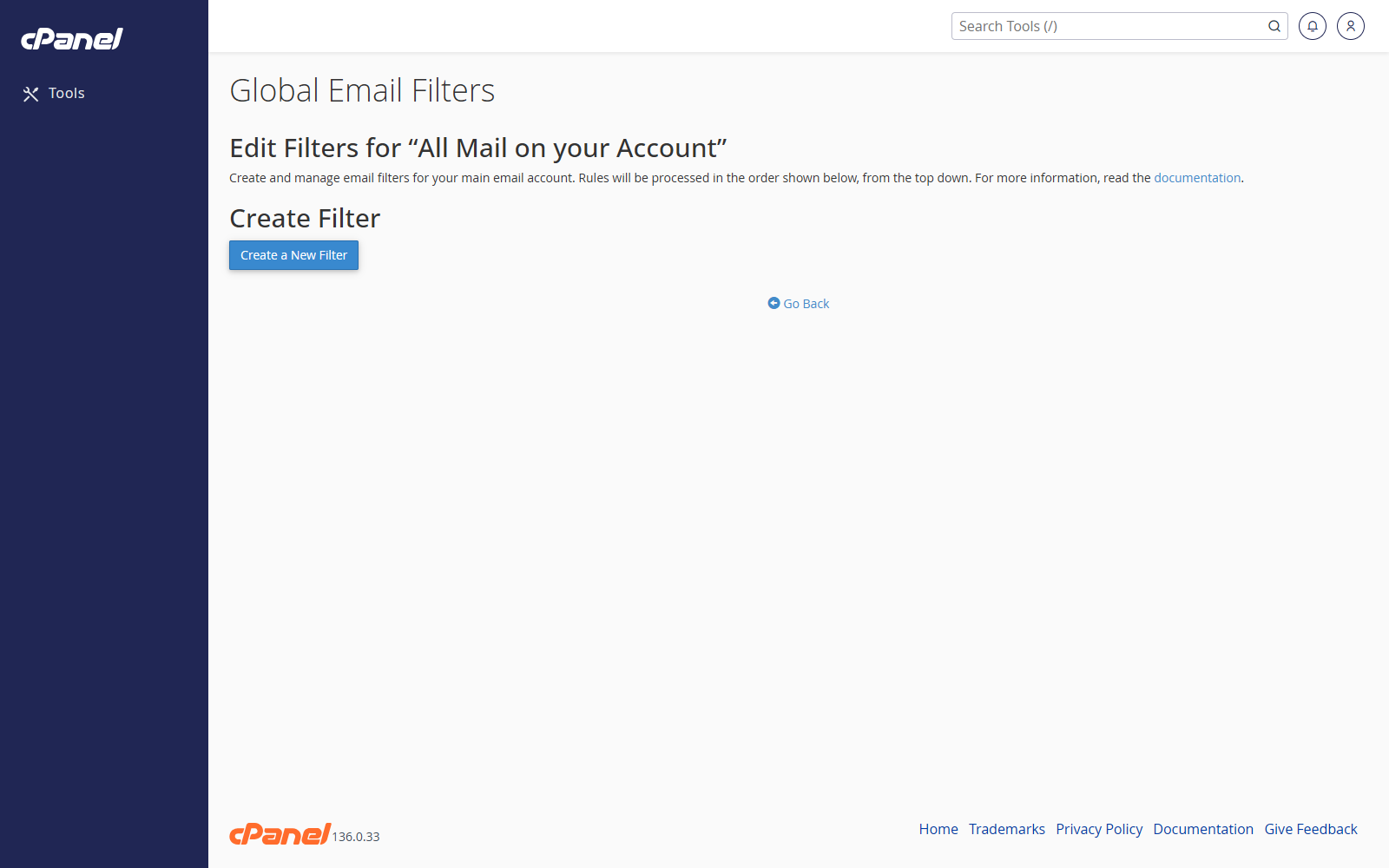
- Click Edit.
- Make your changes.
- Click Save.
Delete a Filter
- Go to Email > Global Email Filters.
- Find the filter.
- Click Delete.
- Confirm the deletion.
Test a Filter
- Go to Email > Global Email Filters.
- Enter a sample message in the test box.
- Click Test Filter.
- Review the result.
Notes
- Global filters apply to all email accounts on the cPanel account.
- If only one mailbox needs the rule, use Email Filters instead.