
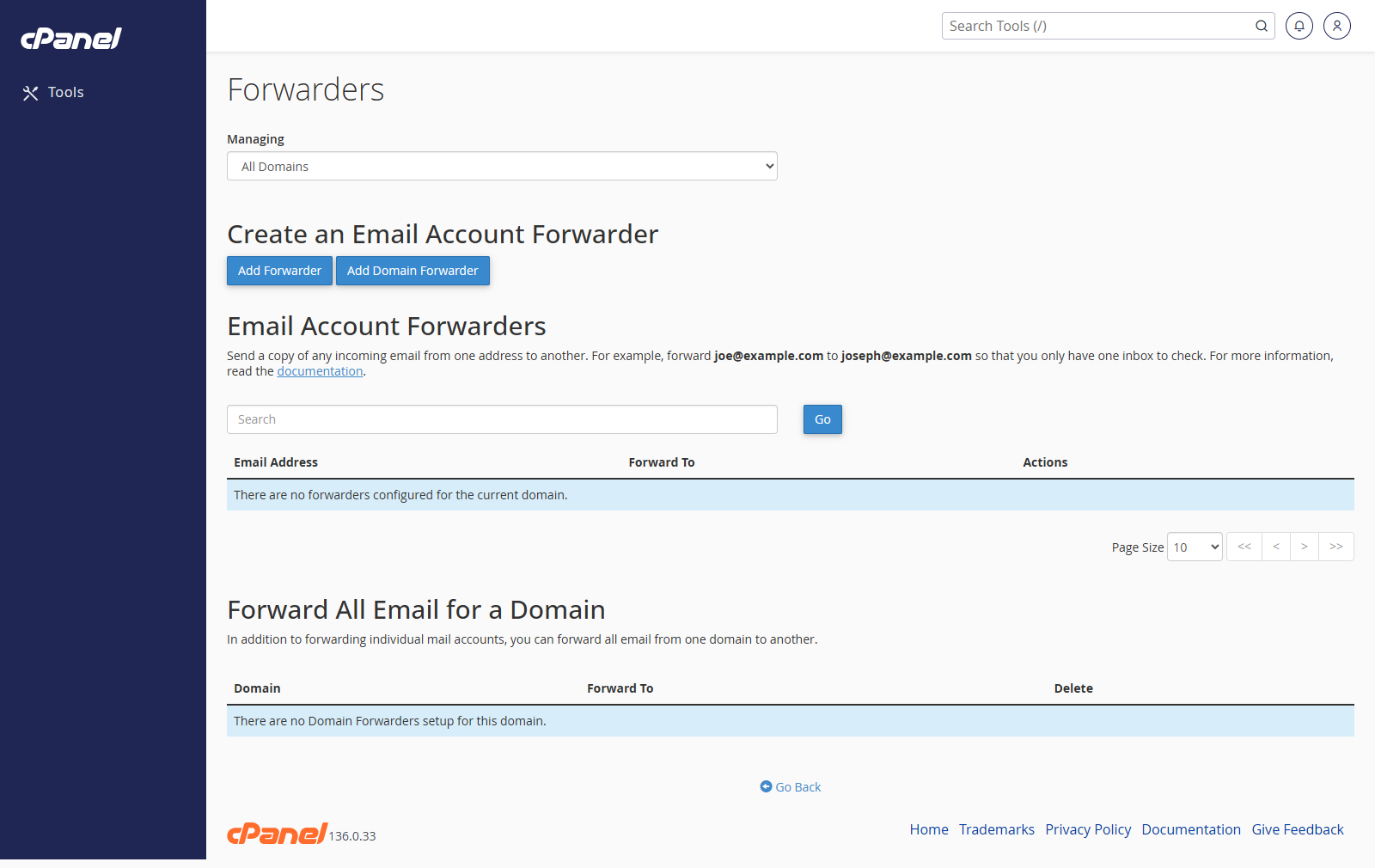
Add an Email Forwarder
- Log in to cPanel.
- Go to Email > Forwarders.
- Choose the domain from the Managing menu.
- Click Add Forwarder.
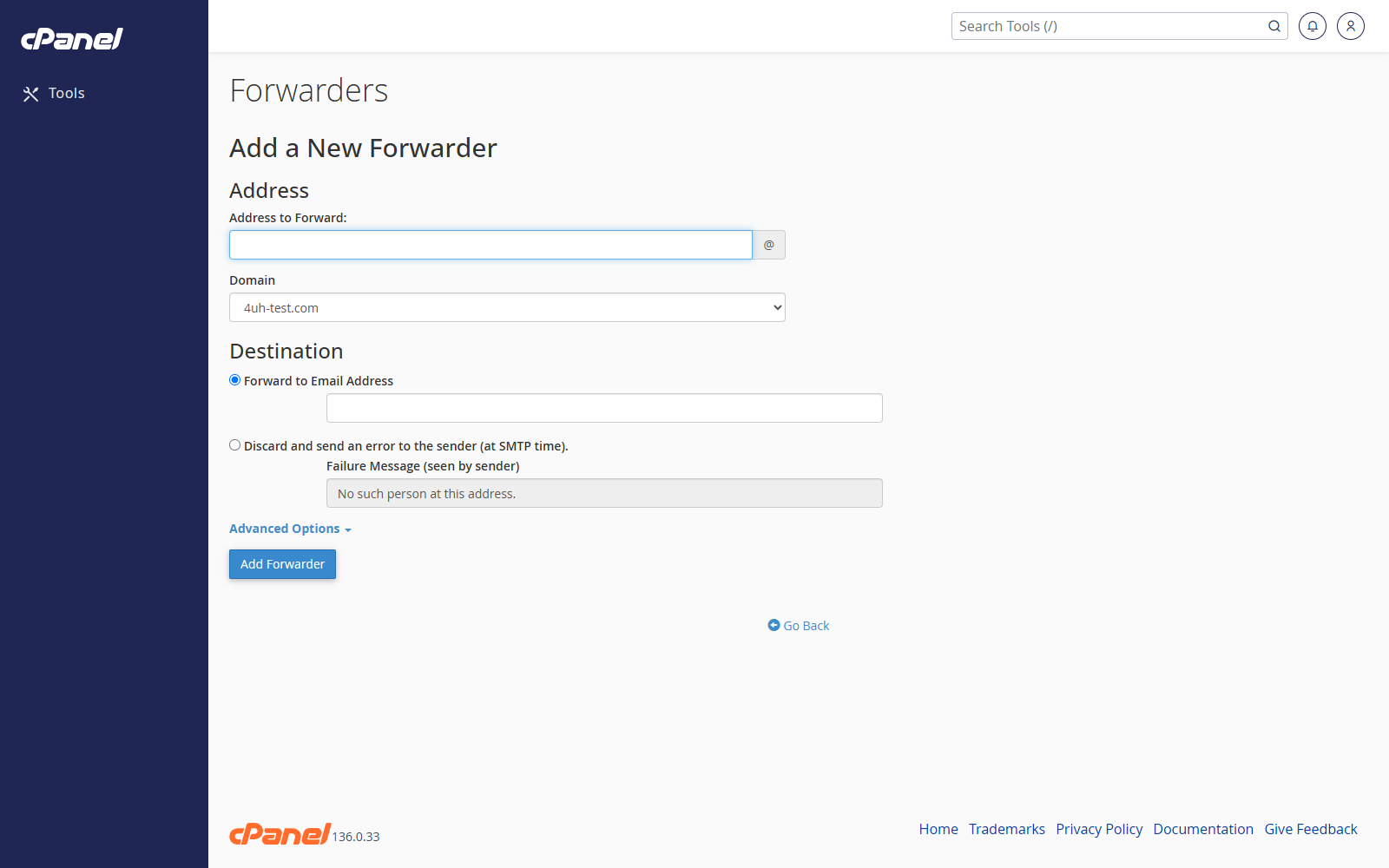
- Enter the first part of the email address in Address to Forward. For example, enter
salesforsales@example.com. - Choose the domain.
- Select Forward to Email Address.
- Enter the destination email address.
- Click Add Forwarder.
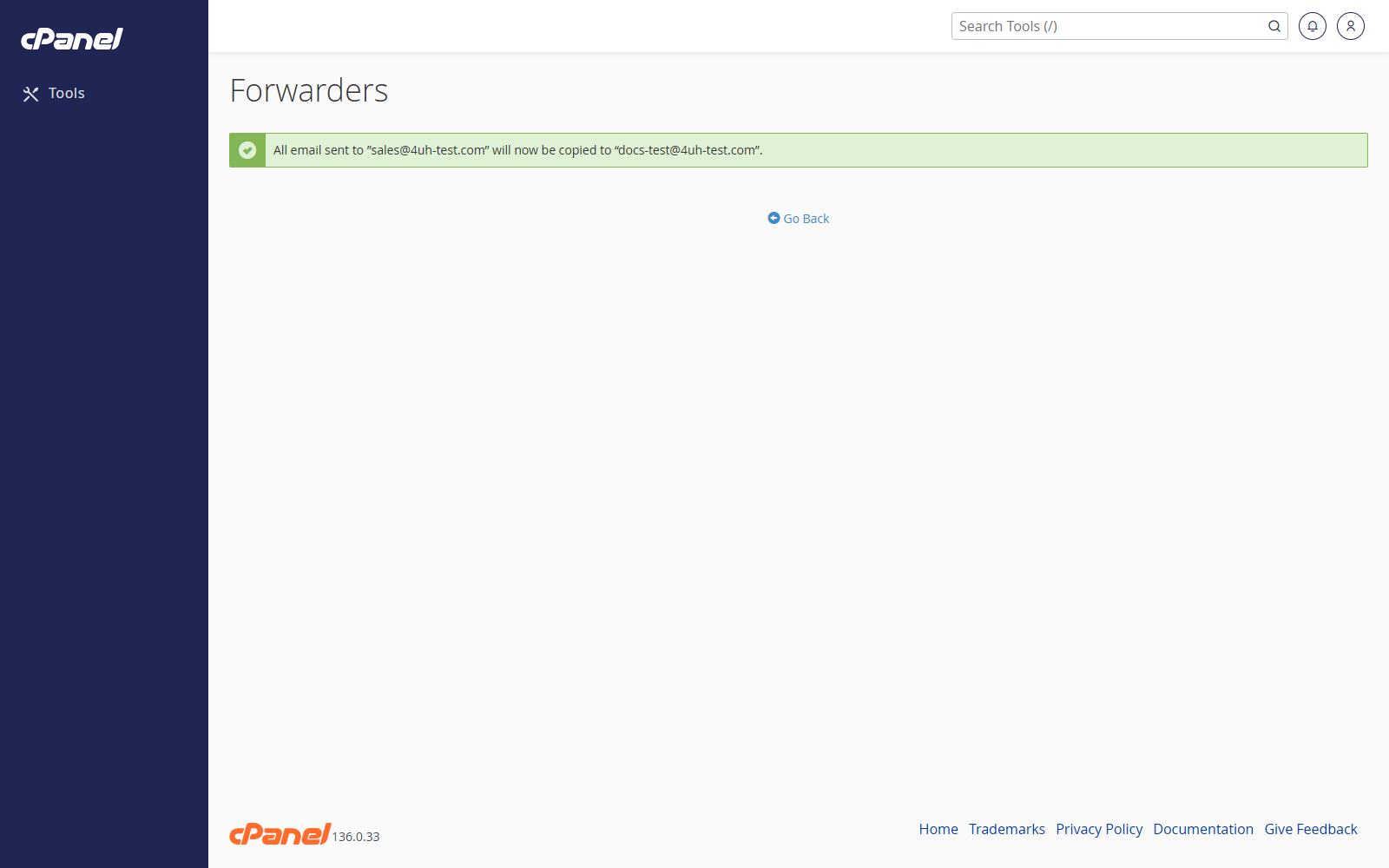
Forward to More Than One Address
- Follow the steps above.
- In the destination field, enter each email address separated by commas.
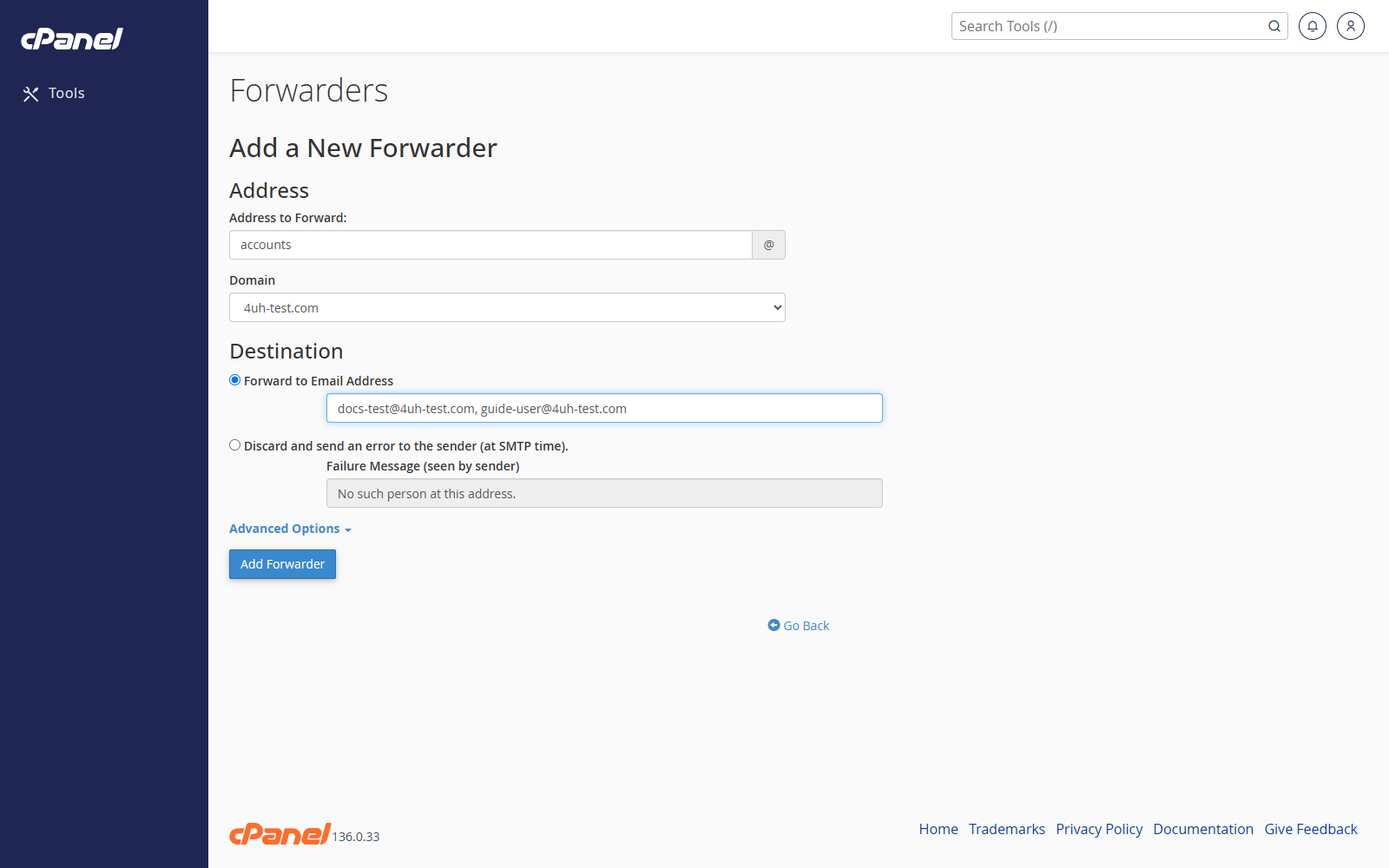
- Click Add Forwarder.
Delete a Forwarder
- Go to Email > Forwarders.
- Find the forwarder in the list.
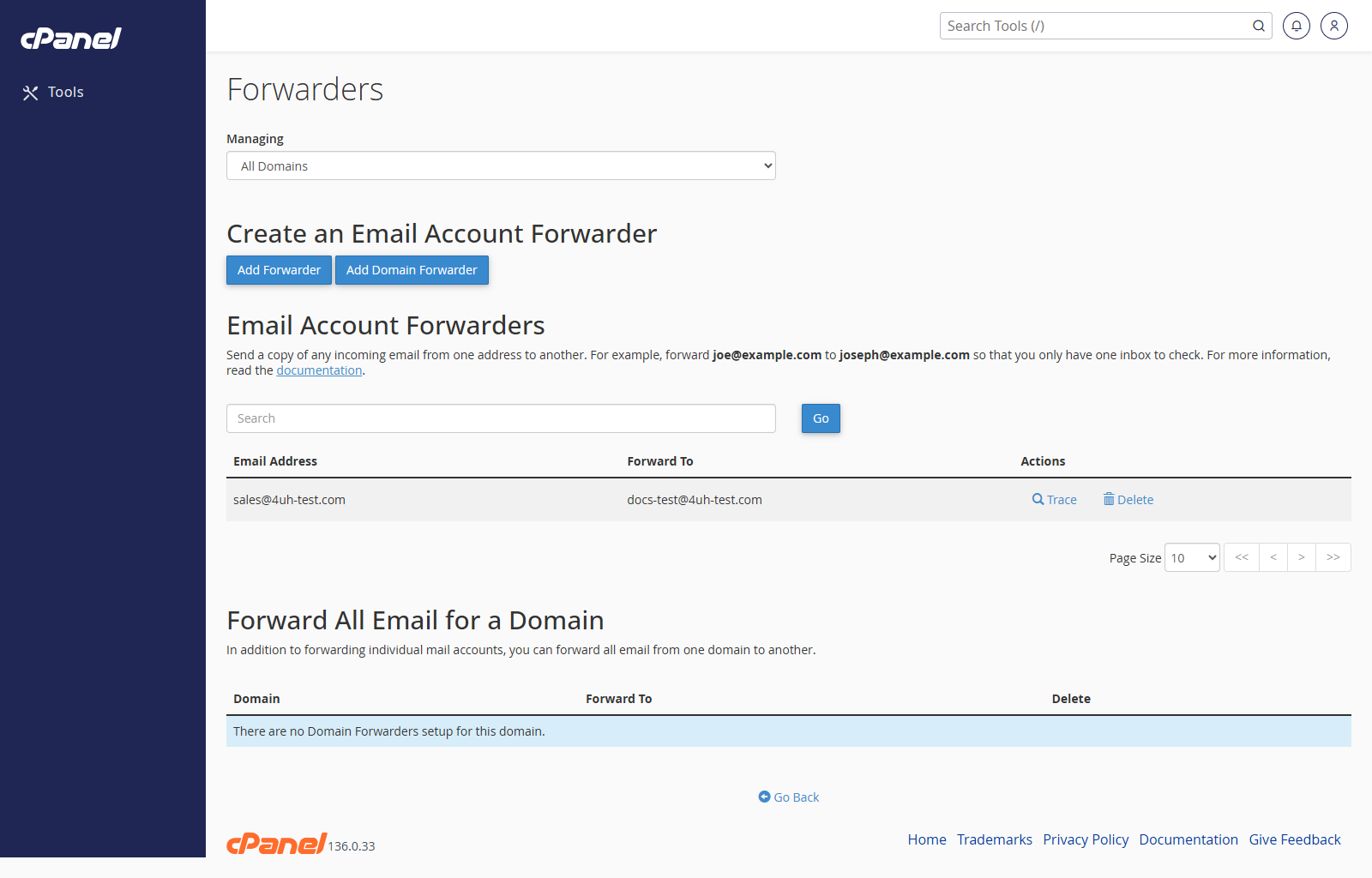
- Click Delete.
- Confirm by clicking Delete Forwarder.
Add a Domain Forwarder
- Go to Email > Forwarders.
- Click Add Domain Forwarder.
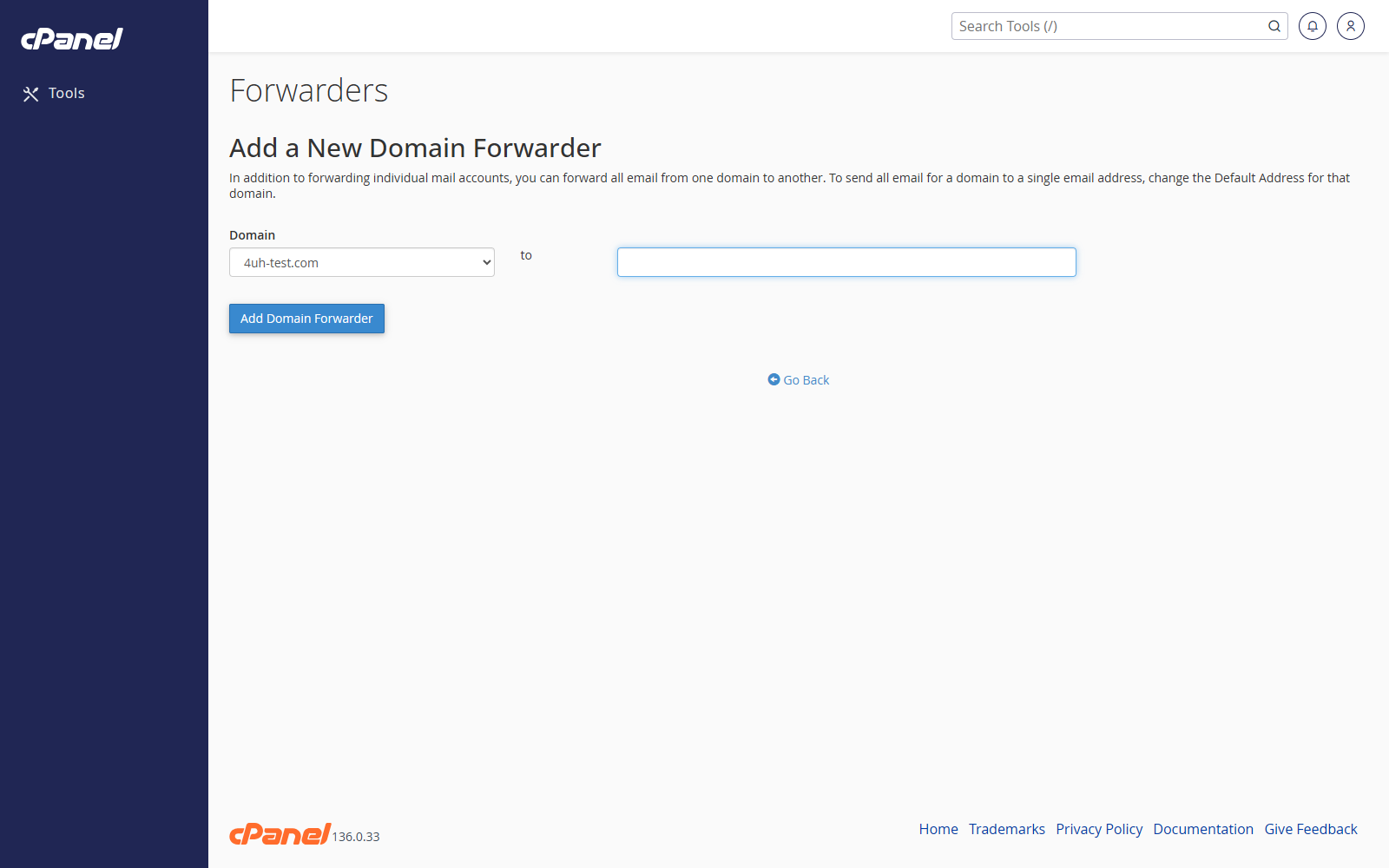
- Choose the domain to forward from.
- Enter the domain to forward to.
- Click Add Domain Forwarder.
Trace a Forwarder
- Go to Email > Forwarders.
- Find the forwarder.
- Click Trace.
- Review the delivery path shown by cPanel.
Notes
- To keep a copy in the original mailbox, create the mailbox first and then add the forwarder.
- You cannot edit an existing forwarder. Delete it and create a new one.
- Domain forwarders only apply to addresses that do not already exist.