
Steps
- Log in to cPanel.
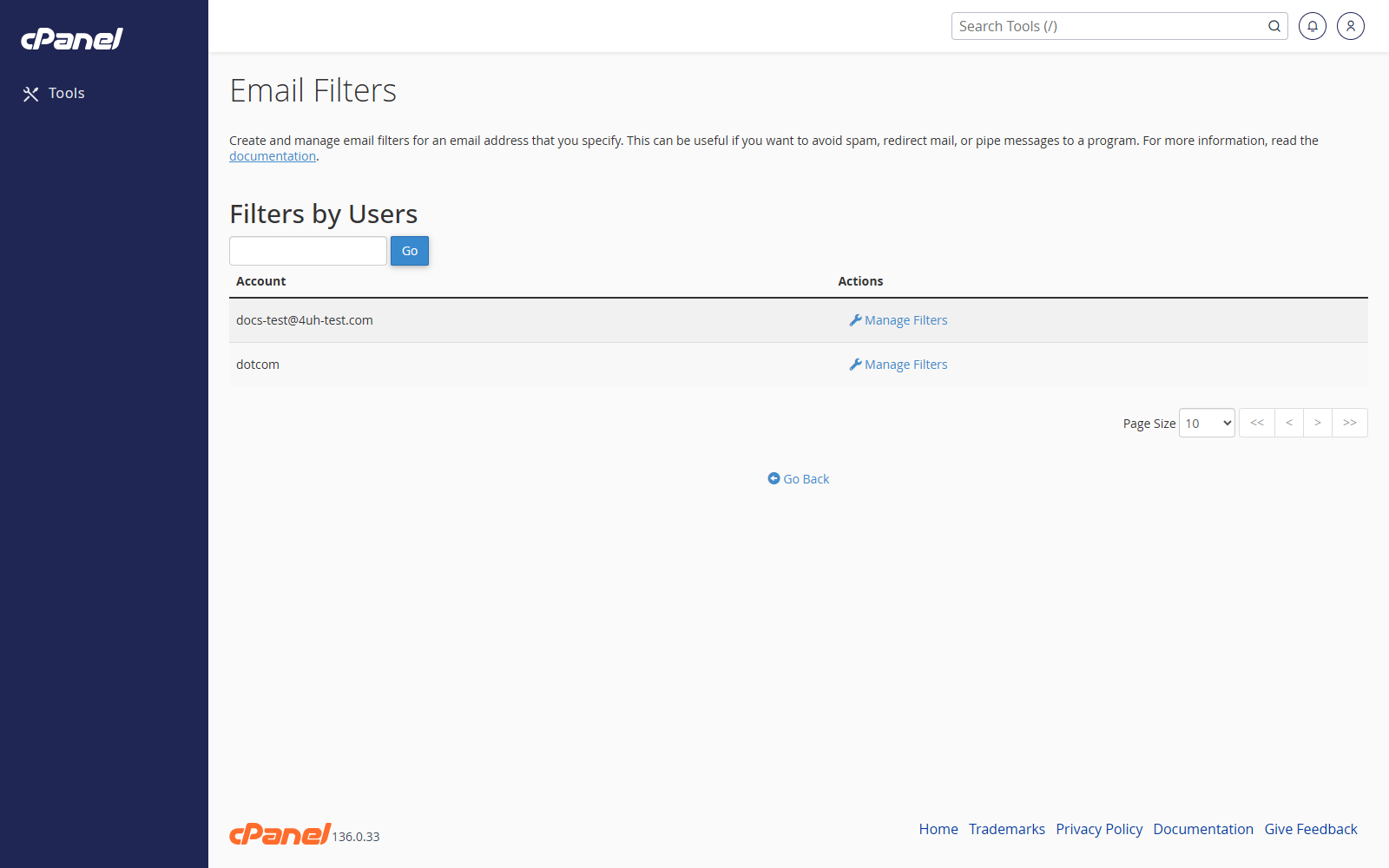
- Go to Email > Email Filters.
- Find the email account.
- Click Manage Filters.
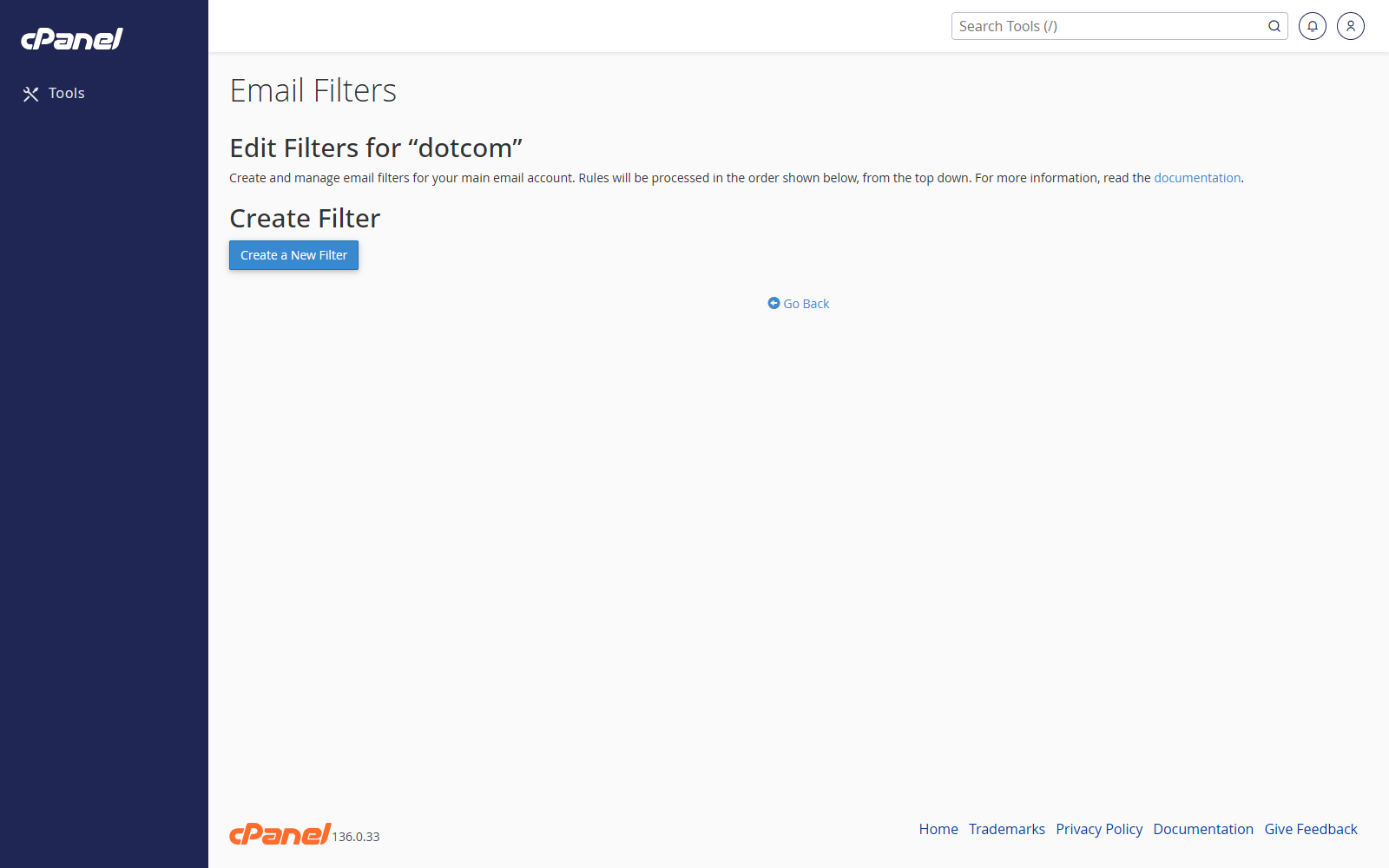
- Click Create a New Filter.
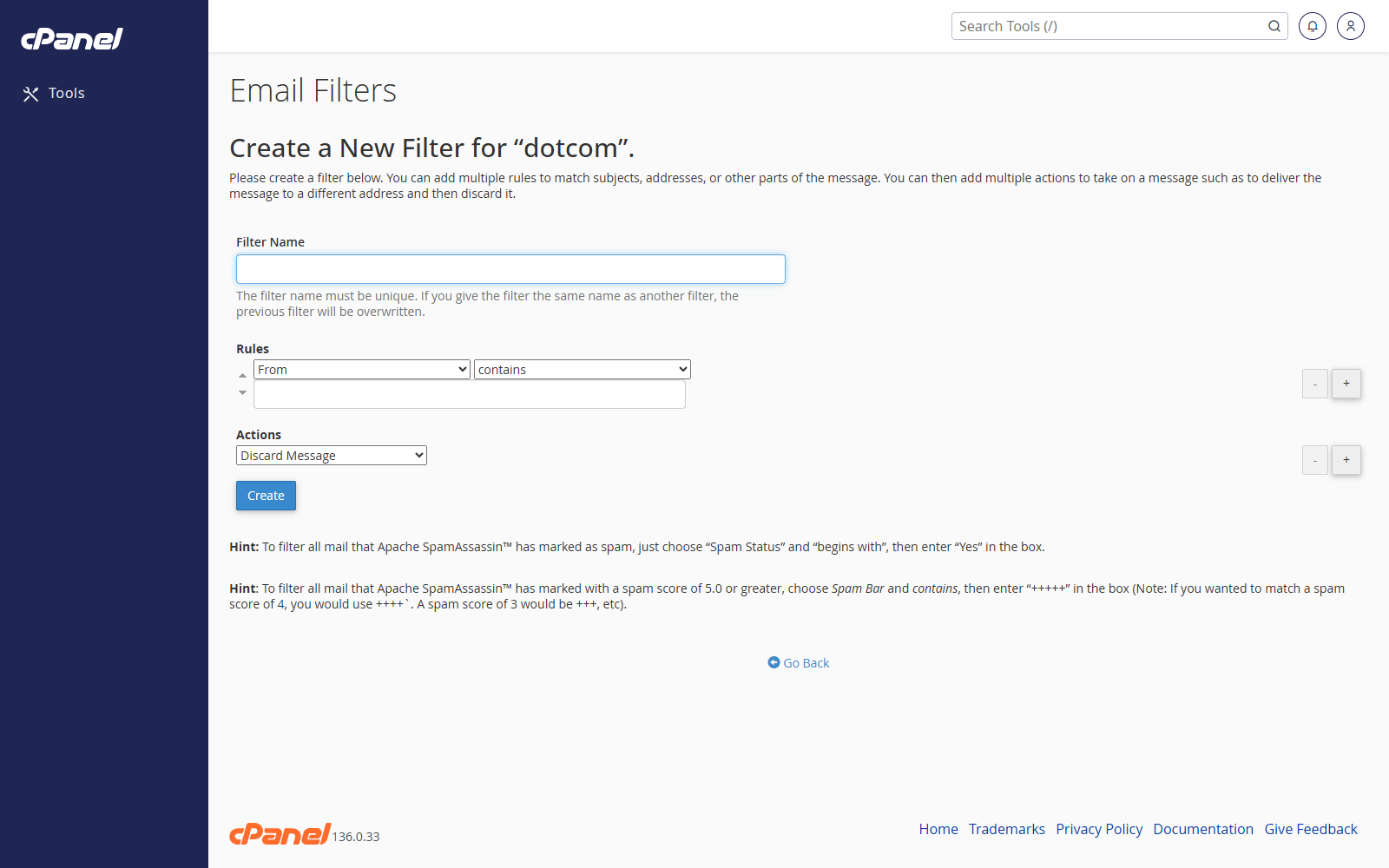
- Enter a filter name.
- Set the rule. For example, choose From, contains, and then enter the sender or keyword.
- Choose the action cPanel should take when the rule matches.
- Click Create.
Edit a Filter
- Go to Email > Email Filters.
- Click Manage Filters next to the account.
- Find the filter.
- Click Edit.
- Make your changes.
- Click Save.
Delete a Filter
- Go to Email > Email Filters.
- Click Manage Filters next to the account.
- Find the filter.
- Click Delete.
- Confirm the deletion.
Test a Filter
- Open Manage Filters for the account.
- Enter a sample message in the filter test box.
- Click Test Filter.
- Review what cPanel says will happen to the message.
Notes
- Filters run in the order shown on the page.
- Create separate filters when different messages need different actions.