
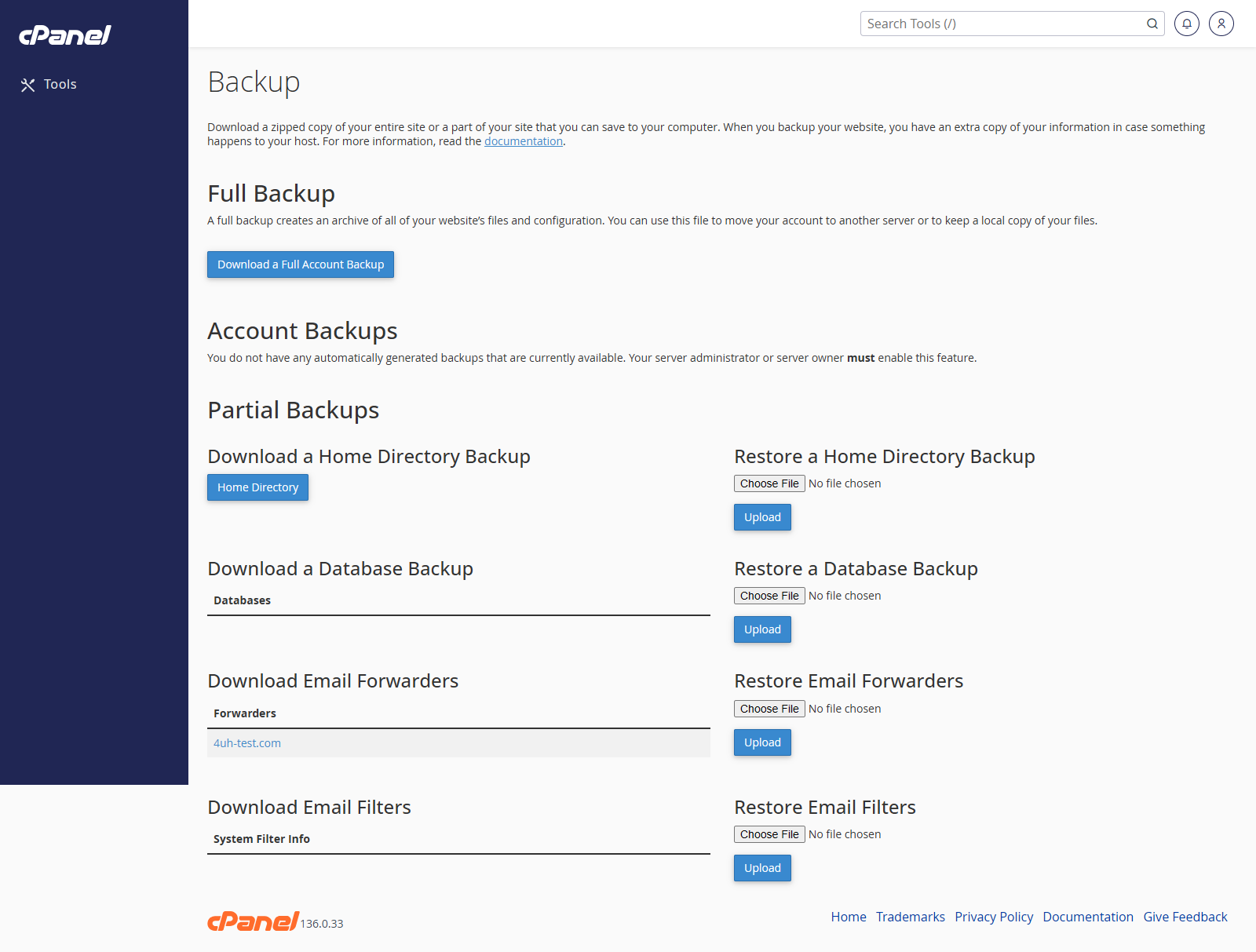
Create a Full Account Backup
- Go to Files > Backup.
- Click Download a Full Account Backup.
- Choose Home Directory from Backup Destination.
- Enter an email address if you want cPanel to notify you when the backup is ready.
- Click Generate Backup.
- Return to the Backup page later and download the backup from Backups Available for Download.
Download a Home Directory Backup
- Go to Files > Backup.
- Find Partial Backups.
- Click Home Directory.
- Save the backup file to your computer.
Download a Database Backup
- Go to Files > Backup.
- Find Download a MySQL Database Backup.
- Click the database name.
- Save the backup file to your computer.
Restore a Partial Backup
- Go to Files > Backup.
- Find Restore a Home Directory Backup, Restore a MySQL Database Backup, or the restore option you need.
- Click Choose File.
- Select the backup file from your computer.
- Click Upload.
Notes
- cPanel can restore partial backups from this screen.
- A full account backup is normally restored by the hosting provider, not directly inside cPanel.
- Download backups before making large website changes.