
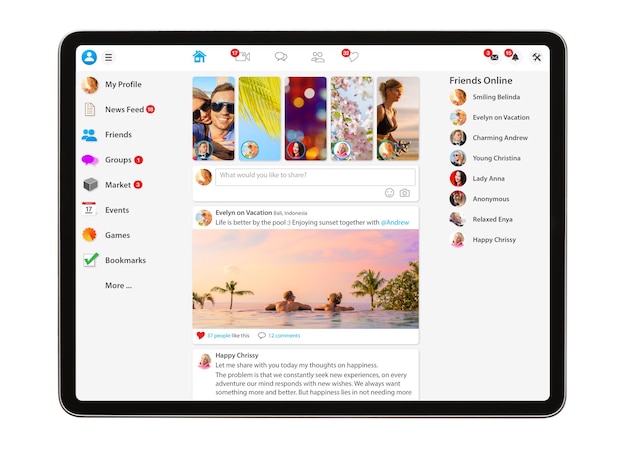
When someone shares a link to your website, the link does not usually appear as plain text. Most social platforms and messaging apps try to show a preview: a title, description and image pulled from the page.
That preview can make a real difference. A clear preview tells people what the link is and why it might be worth clicking. A broken, missing or irrelevant preview can make even a good page look careless.
What is a social sharing preview?
A social sharing preview is the card-style summary that appears when a page is shared on platforms such as Facebook, LinkedIn, X, Slack, WhatsApp or other apps that unfurl links.
The exact layout varies by platform, but the key elements are usually:
- Page title
- Short description
- Featured image
- Website domain
These details often come from metadata in the page, including Open Graph tags and platform-specific card tags.
Why it matters
People make fast decisions online. If a shared link has no image, a cut-off title or a description that makes no sense, it can feel less trustworthy.
Good preview metadata gives the reader context before they click. It also gives your content more visual presence in busy feeds, messages and group chats.
For businesses that rely on blog posts, landing pages, product pages or announcements being shared, this is simple housekeeping that can improve presentation.
Use a proper featured image
The preview image is often the most noticeable part of the card. Choose an image that fits the page and still makes sense when cropped.
Avoid images with tiny text or important details near the edges. Different platforms crop previews differently, so a simple, strong image is usually safer than a busy graphic.
If the page is a blog post, the featured image is often used as the social image too. That makes image choice more important than it first appears.
Write titles for humans
The preview title should make the page’s purpose clear. It does not need to repeat your full website name if the platform already shows the domain.
For blog posts, use a title that accurately reflects the article. For service pages, make sure the title includes the service and perhaps the audience or location if relevant.
Avoid clickbait. A misleading preview may win a few clicks, but it weakens trust.
Make the description useful
The description should summarise the value of the page in one or two short sentences. It should tell the reader what they will get if they click.
This is especially useful when the page title is concise. The description can add the extra context.
For example, a title might be Managed WordPress Hosting. The description can explain that the service is for businesses that want hosting, updates and support looked after properly.
Check how links appear
Do not assume your previews are working. Test important pages after publishing and after major website changes.
Many platforms offer link preview tools or will refresh a cached preview if the wrong image or title is showing. WordPress SEO plugins and social sharing plugins can also help you set and test this metadata.
If a preview looks wrong, check the page source for missing or conflicting metadata.
Keep metadata consistent
Social previews should match the page. If the image, title or description promises something different from the content, people may bounce quickly or feel misled.
Consistency also helps your brand look more professional. A shared link is often someone’s first impression of your website. Make it a good one.
Small details help content travel
Social sharing previews will not rescue weak content, but they can help good content travel further. They make links clearer, more visual and easier to trust.
If your website depends on people sharing pages with clients, colleagues or customers, take the time to get the preview details right.